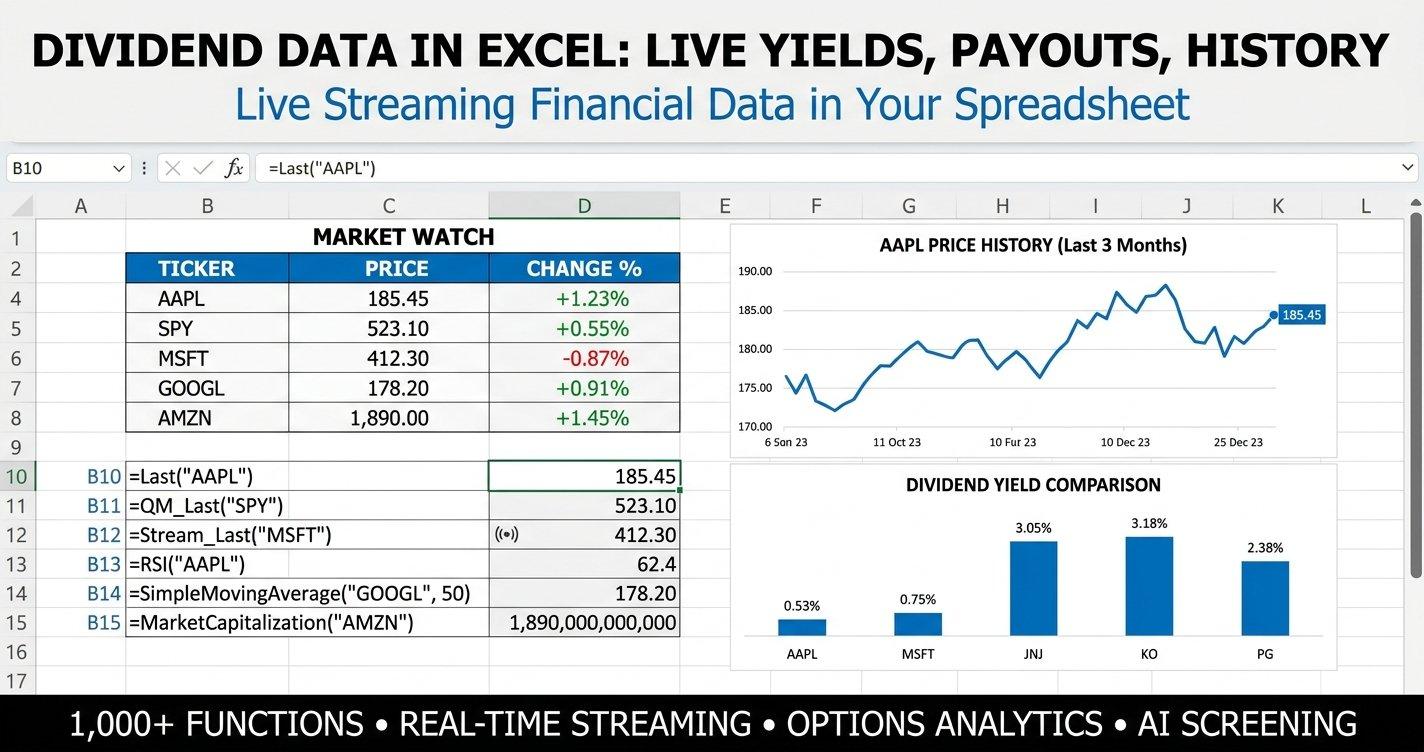
Dividend data in Excel is the workflow most income-focused investors keep coming back to, and for good reason. Excel is where positions get sized, where scenarios get stress-tested, and where the decision to add or trim a name actually gets made. The friction is not Excel itself. The friction is getting current, accurate dividend data into the spreadsheet without copying figures out of a broker dashboard every morning. This guide explains how to pull live dividend data into Excel with MarketXLS, what fields actually matter for an income workflow, and how to assemble a screener that ranks 25 dividend payers on yield, payout ratio, cash flow coverage, and a composite Quality Score. The Excel template at the bottom of the post does all of this on a live feed, and the static version is pre-filled with snapshot data as of May 13, 2026 so you can see the entire model end to end.
Dividend Data in Excel: The Fields That Matter (At a Glance)
| Field | Why It Matters | MarketXLS Formula |
|---|---|---|
| Last Price | Anchors yield calculations and share counts | =QM_Last("JNJ") |
| Dividend Yield | TTM yield - the headline number | =DividendYield("JNJ") |
| Dividend Per Share | Annual cash payout per share | =DividendPerShare("JNJ") |
| Payout Ratio | Dividends as a share of earnings | =DividendPayoutRatio("JNJ") |
| Earnings Per Share | Underlying earnings driver | =EarningsPerShare("JNJ") |
| Cash Flow Per Share | Sanity check on payout ratio | =CashFlowPerShare("JNJ") |
| Dividend Streak | Consecutive years of increases | =ConsecutivePeriodOfIncreasingDividendPayout("JNJ",1) |
| Sector | GICS classification for sector rollups | =Sector("JNJ") |
| Beta | Volatility versus the broader market | =Beta("JNJ") |
| P/E Ratio | Valuation context for the yield | =PERatio("JNJ") |
These ten fields are the foundation of any serious dividend workbook. The rest of this post explains how to wire them together in Excel and how the included template ranks 25 dividend payers on every one of them automatically.
Why Pulling Dividend Data Into Excel Matters Right Now (May 2026)
The May 2026 backdrop makes the case for a live dividend workflow more pressing than it has been in years. The Federal Reserve continues to hold the policy path data-dependent, which means refinancing costs for dividend payers keep grinding higher as legacy debt rolls over. Q1 2026 earnings made the bifurcation visible: companies with low payout ratios and strong cash flow conversion have either maintained or raised their dividends, while names that funded buybacks and distributions with cheap debt during the 2020 to 2022 window are now where analysts are quietly modeling cuts.
In that environment, working from a stale snapshot of dividend yields is dangerous. A 4.5% yield that looked attractive last quarter may be a 4.5% yield that is already on the cut list. A 2.8% yield from a company that just raised its payout for the 60th consecutive year may be more durable than a headline number suggests. The only way to see the difference quickly is to have every relevant field, including payout ratio, cash flow coverage, and dividend streak, recalculating in front of you in the same spreadsheet.
This is the gap that pulling dividend data into Excel with MarketXLS fills. You stop copying numbers out of three browser tabs and start working with a single workbook that refreshes on demand. The header on the dashboard shows your portfolio size, your target yield, and your minimum dividend streak. Every row underneath updates the second you press F9. That is the workflow this guide builds.
The Four Categories of Dividend Data You Actually Need
A serious dividend workbook needs four categories of data. Each category answers a different question, and a screener that omits any of them gives you a partial picture.
1. Income Data
Income data is the headline layer. Yield, dividend per share, and a rough sense of when dividends are paid. The MarketXLS functions =DividendYield("JNJ") and =DividendPerShare("JNJ") return the trailing twelve-month dividend yield and the annual cash dividend per share. The dividend per share is the figure you multiply by share count to project income. The yield is the figure you compare across the watchlist when you are deciding where the same dollar buys more cash. For most rows in your screener, these two fields and a price column are enough to estimate income on a per-position basis.
2. Coverage Data
A 5% yield with a 95% payout ratio is a 5% yield that may not survive a soft quarter. A 2.5% yield with a 35% payout ratio and strong cash flow has room to run. Coverage data lets you tell the difference. Payout ratio via =DividendPayoutRatio("JNJ") is the first stop. Cash flow per share via =CashFlowPerShare("JNJ") divided by =DividendPerShare("JNJ") is the sanity check. When earnings are noisy, as they often are in cyclicals and commodity producers, the cash-based coverage ratio is what credit analysts actually look at. Both belong in your Excel workbook side by side so you can compare them row by row.
3. Quality and Track Record Data
A long dividend track record is not a guarantee, but it is a strong piece of evidence. Companies that have raised their dividend through 2008, 2020, and 2022 have demonstrated that the board treats the payout as a hard claim on cash. The MarketXLS function =ConsecutivePeriodOfIncreasingDividendPayout("JNJ",1) returns the consecutive years of dividend increases, which is the standard definition for the various "aristocrat" and "achiever" lists. Pair it with =ReturnOnEquity("JNJ") and =TotalDebtToEquity("JNJ") to capture the underlying durability of the business. A streak alone, with leverage that has crept up over the cycle, is the classic setup that ends in a surprise cut.
4. Context Data
Yield does not exist in a vacuum. A 4% yield on a defensive utility is different from a 4% yield on a deep cyclical. A 3% yield with a 12 P/E is different from a 3% yield with a 28 P/E. Context fields like sector via =Sector("JNJ"), beta via =Beta("JNJ"), and the price-to-earnings ratio via =PERatio("JNJ") give you the lens through which the income figures should be read. The Sector Comparison sheet in the included template uses these fields to roll the watchlist up by GICS sector and surface where the cleanest dividend opportunities are concentrated.
How to Pull Dividend Data Into Excel With MarketXLS
The mechanics are straightforward once the MarketXLS add-in is installed. Every function takes a ticker as its first argument, returns a live value, and recalculates when the workbook refreshes. The pattern is the same as any built-in Excel function.
=QM_Last("JNJ")                                       -> 162.40
=DividendYield("JNJ")                                 -> 3.18
=DividendPerShare("JNJ")                              -> 5.06
=DividendPayoutRatio("JNJ")                           -> 49.5
=EarningsPerShare("JNJ")                              -> 10.22
=CashFlowPerShare("JNJ")                              -> 11.91
=ConsecutivePeriodOfIncreasingDividendPayout("JNJ",1) -> 62
=Sector("JNJ")                                        -> "Health Care"
That short list is the heart of the workbook. You put one ticker per row in column A, then drag the formula bar across so each column reads the same field for the ticker on that row. Within a few minutes you have a live screener that prices dozens of dividend payers in real time. The included template extends that pattern with input cells, scenarios, and a composite Quality Score, but the underlying mechanic is exactly the formulas above.
Building a Composite Dividend Quality Score in Excel
A single yield column is not enough to rank a watchlist. The included template combines five components into a 0-to-100 Quality Score. Each component contributes up to 20 points.
- Payout coverage (20 points): scales linearly from a 100% payout ratio (zero points) toward a low payout ratio (full 20 points). A modest payout leaves room for adverse quarters.
- Cash flow coverage (20 points): scales from 1.0x coverage (zero points) to 2.0x or higher (full 20 points). The cash-based check on the payout ratio.
- Beta-adjusted volatility (20 points): lower beta gets more points. Income strategies typically penalize volatility because cuts cluster in cyclical names.
- Balance sheet leverage (20 points): scales from a debt-to-equity ratio of 2.0 (zero points) to 0.5 or lower (full 20 points). Captures balance sheet strength.
- Dividend streak (20 points): scales linearly with years of consecutive increases, capped at 20. Track record gets explicit credit.
The actual formula in the Quality Score column looks like this:
=ROUND(
  MAX(0,MIN(20,(100-F13)/3))
  +MAX(0,MIN(20,(I13-1)*20))
  +MAX(0,MIN(20,(1.5-K13)*20))
  +MAX(0,MIN(20,(2-L13)*10))
  +MAX(0,MIN(20,N13))
,0)
Row 13 holds the live MarketXLS formulas for payout ratio (column F), cash flow coverage (I), beta (K), debt to equity (L), and dividend streak (N). The score updates the moment any input refreshes. A Verdict column maps the score to a four-tier label: High Quality (70+), Solid (50-69), Watch (30-49), or Risky (below 30).
The composite design is intentional. Yield alone never tells the whole story. A company can have a long streak and still cut its dividend if cash flow weakens for two consecutive quarters. A company can have a low payout ratio and still cut if the balance sheet is overlevered. By blending five lenses, the score reflects what a credit-trained analyst would actually weigh.
What Is Inside the Dividend Data in Excel Template
The template ships in two flavors. The sample workbook is pre-filled with snapshot values so you can see the model end to end without a MarketXLS subscription. The formula version is wired to live MarketXLS functions so it refreshes every time you open it or press F9. Both share the same six-sheet structure.
1. How To Use
A plain-English tutorial sheet that lists every other sheet in the workbook, what it does, and how the inputs flow through. New users start here. Power users skip it.
2. Main Dashboard
The screener. Six yellow input cells along the top: portfolio size, target dividend yield, minimum dividend streak, max payout ratio, and minimum payout coverage. Underneath, a 25-row table covering well-known dividend payers across consumer staples, healthcare, technology, financials, industrials, energy, utilities, communications, and real estate. Sixteen columns of data per row: price, yield, dividend per share, payout ratio, EPS, cash flow per share, payout coverage, P/E, beta, debt-to-equity, ROE, dividend streak, Quality Score, and a Verdict label. Every column except the ticker is a live MarketXLS formula in the formula edition.
3. Dividend Calendar
An equal-weight income estimator. The sheet pulls each ticker's dividend per share from the Main Dashboard and applies it to an equal-weight position size derived from your portfolio size input. The result is a row-level estimate of annual, monthly, and quarterly dividend income for the entire watchlist, with a portfolio-level summary at the bottom that compares baseline income to your target.
4. Reinvestment Scenarios
A DRIP "what if" table. Each ticker's current yield drives a future value projection across 5, 10, 20, and 30 year horizons, assuming dividends are reinvested at the present yield. A separate column estimates simple cumulative dividends over 30 years. The point is not to forecast precise outcomes. The point is to give you a structured way to compare similar-quality names with different yields and see how the math diverges over a long horizon.
5. Portfolio Allocation
Three allocation methods side by side. Equal weight gives every position the same dollar exposure. Yield-weighted tilts the same portfolio toward the higher-yielding names. Quality-weighted tilts toward the higher Quality Scores. All three respect your portfolio size input cell, and a projected income column shows what dividend income each method generates from the same dollars.
6. Sector Comparison
An AVERAGEIFS rollup. For each of the ten GICS sectors represented in the watchlist, the sheet computes average yield, average payout ratio, average payout coverage, average debt-to-equity, average beta, and average Quality Score. The verdict column flags which sectors are screening as High Quality, Mixed, or Stretched in the current environment.
Every sheet in the workbook closes with a "MarketXLS Functions Used in This Sheet" box that lists the exact formulas referenced. The intent is that when a user starts adapting the workbook to their own watchlist, the function reference is right there, on the same sheet.
Download the Dividend Data in Excel Templates
Download the templates:
- - Pre-filled with snapshot data as of May 13, 2026 and the formula reference next to each value.
- - Live-updating formulas. Open the file with the MarketXLS add-in installed and every value refreshes.
Both files open cleanly in Excel 365 and Excel 2021. The sample version is safe to share with colleagues who do not have MarketXLS installed. The formula version is the one to keep in your active workbook folder.
A Practical Workflow: From Watchlist to Income Target
The fastest way to get value out of the template is to drop your own watchlist into column A and let the rest of the columns recalculate. Three sequences are worth knowing.
Sequence 1: Build a Target Income Plan
Start on the Main Dashboard. Set portfolio size to your actual investable dollars. Set target dividend yield to the income you want as a share of that portfolio. The Dividend Calendar sheet immediately translates that into an annual income target, divides it by 12 to show the monthly equivalent, and compares it to the baseline income generated by the current watchlist. If the gap is too large, you have two levers: shift toward higher-yielding names on the Portfolio Allocation sheet, or expand the watchlist to include more income-oriented holdings.
Sequence 2: Stress-Test a Single Position
If you are evaluating whether to add or trim a single position, paste its ticker into a fresh row on the Main Dashboard. The yield, payout ratio, cash flow coverage, dividend streak, and Quality Score all populate from MarketXLS. Look at the Verdict column. A "High Quality" verdict with a yield below your target is a candidate for a smaller position size; a "Watch" verdict at any yield is a candidate for closer review before you commit capital. The composite score is designed so that two columns next to each other (yield and Quality Score) give you enough information to make a first-pass decision.
Sequence 3: Compare Two Watchlists
Duplicate the Main Dashboard sheet. Paste a second watchlist into the duplicate. The Sector Comparison sheet is intentionally generic; it works against any tickers on the dashboard. With the two sheets side by side you can compare the average yield, average payout, and average Quality Score of two candidate portfolios across the same set of sectors. The version with the higher average Quality Score at the same average yield is, by the framework, the better income portfolio. This is the comparison most income workbooks do not let you make without an export and a join in another tool.
Common Mistakes When Working With Dividend Data in Excel
A handful of pitfalls show up over and over again in dividend workbooks. None of them are obvious until they are.
Mixing forward and trailing yields. A forward yield (annualized current rate) and a trailing yield (sum of last twelve months) can differ meaningfully for a company that just raised its dividend. The MarketXLS =DividendYield("JNJ") returns the trailing yield, which is the standard for comparison. If you want forward yield, use =DividendPerShare("JNJ")/QM_Last("JNJ")*100 to compute it explicitly. Mixing the two columns silently produces a screener that looks correct but ranks the watchlist on inconsistent definitions.
Treating REIT payouts as if they were corporate payouts. Real estate investment trusts pay out from AFFO, not net income. A TTM payout ratio above 100% is normal for a healthy REIT because depreciation is a large non-cash charge. The Sector Comparison sheet flags this on the Real Estate row. The fix in a dedicated REIT workbook is to swap the payout ratio column for an AFFO-based coverage column.
Ignoring the streak for non-aristocrats. A 5-year streak is not a 25-year streak, and the difference matters. The Quality Score in the template gives full credit only at 20+ years and zero credit at zero years. If your watchlist skews toward newer dividend payers, expect lower composite scores even when the income looks attractive. That is a feature, not a bug.
Hardcoding values that should be formulas. The most common workbook mistake is copying a current yield into a cell, then forgetting it is static. Three months later, that cell is a snapshot from a quarter ago, and every downstream metric is wrong. The formula edition of this template uses MarketXLS functions for every data column, so the only static input is the ticker itself.
Frequently Asked Questions
How do I get dividend data in Excel without exporting from a broker?
Install the MarketXLS add-in and use the formula functions described in this guide. =DividendYield("JNJ"), =DividendPerShare("JNJ"), =DividendPayoutRatio("JNJ"), and =ConsecutivePeriodOfIncreasingDividendPayout("JNJ",1) return the four most commonly requested fields. The data refreshes when the workbook recalculates, so there is no manual export step.
Can I pull dividend history into Excel as well as the current yield?
Yes. =QM_GetHistory("JNJ") returns historical price data, and dividend payment history can be accessed through dedicated dividend-history functions in the MarketXLS suite. For most workbook use cases, the most useful "history" field is the dividend streak (consecutive years of increases), which is a single number per ticker and goes directly into the screener.
What does the Quality Score actually measure?
It is a 0-to-100 composite that blends payout coverage, cash flow coverage, beta, debt-to-equity, and dividend streak. Each of the five components contributes up to 20 points. The score is designed so that a name with a moderate yield, strong coverage, and a long streak ranks above a higher-yielding name with weaker coverage. The exact formula is documented in the "Building a Composite Dividend Quality Score in Excel" section above.
Is this template a replacement for my broker's dividend tracker?
The template is a complement, not a replacement. Your broker tracks the dividends you actually receive on the shares you actually own. The template lets you screen, rank, and stress-test before you decide which shares to own. The two workflows fit together: use the broker for execution and recordkeeping, use the Excel workbook for analysis and decision-making.
How often should I refresh the workbook?
For an active income workflow, opening the workbook and pressing F9 once per trading day is enough for most decisions. Around earnings, when payouts can change, refresh after the relevant company reports. The MarketXLS functions fetch fresh data on every recalculation, so the workbook always reflects the latest available figures.
Can I use this with my own watchlist of 50 to 100 tickers?
Yes. The Main Dashboard is designed to be extended. Paste additional tickers into column A and drag the formula columns down. The Portfolio Allocation and Sector Comparison sheets reference the dashboard range, so extending them is a matter of widening the named ranges. For very large watchlists (200+ tickers), splitting the dashboard into two or three sheets keeps recalculation responsive.
The Bottom Line
Working with dividend data in Excel stops feeling like work the moment the data is live. The MarketXLS functions in this guide turn a static export into a live screener, and the included template wires those functions into six sheets that cover the entire income workflow: from a 25-row dashboard to a monthly income estimator, a DRIP scenario table, three allocation methods, and a sector rollup. The Quality Score in the dashboard gives you a single number to rank on; the Verdict column gives you a single label to act on. Everything else updates around those two columns automatically.
Income investing is ultimately about durability. Yield is the headline, but coverage is the story, and a composite that blends both is the workbook output that earns its place on your desktop. Build it once, point it at your watchlist, and the next time the Federal Reserve moves or a payout ratio quietly drifts above 80%, the workbook is what shows you. To explore the broader MarketXLS function library, visit the features page or the dividend tools docs. For a guided walkthrough of how teams use this workflow in production, book a demo and bring your real watchlist.
This template and post are educational only. Nothing here is a recommendation to buy or sell any security. Past dividend history does not guarantee future dividend payments, and payout ratios can change between earnings reports without notice.