
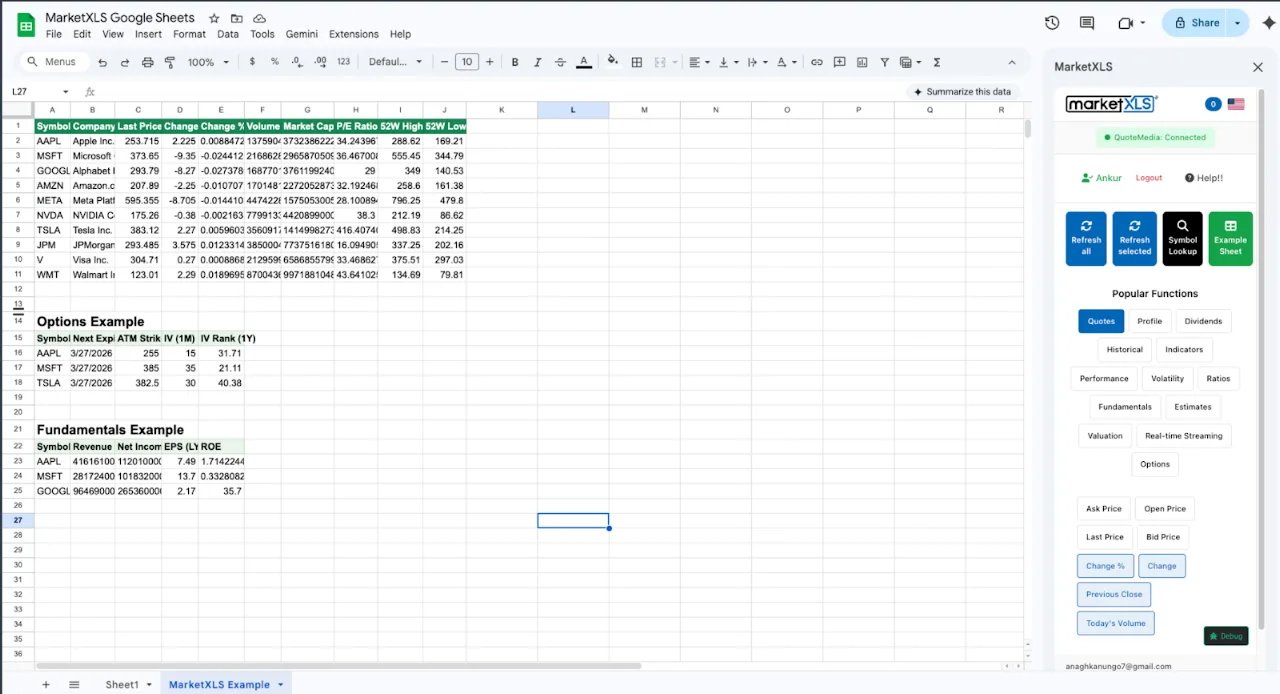
You can track mutual funds in Google Sheets for free with =GOOGLEFINANCE("MUTF:VFIAX","price"), which returns the latest NAV for most popular US funds. That is enough for a holdings list and a portfolio total. It is not enough to compare funds: GOOGLEFINANCE does not return a mutual fund's dividend yield, beta, or expense ratio, and moving averages take multi-step array formulas. MarketXLS adds those as one-cell formulas, such as =DividendYield("VFIAX"), =Beta("VFIAX"), and =FundExpenseRatio("VFIAX"), through its Google Sheets add-on or its Excel add-in.
Try it in your own spreadsheet
Get the free MarketXLS sample workbook (.xlsx).
No account needed. MarketXLS live data requires a paid plan.
Explore more videos
This guide covers what Google Sheets does well for mutual fund tracking, where it breaks, and a fund scorecard you can download as an Excel template.
Mutual Fund Google Sheets: The Quick Coverage Map
Before you commit a quarter to building a complex Google Sheets workbook, it helps to know what data you can and cannot pull. Below is the practical coverage map for a typical US mutual fund, with the MarketXLS equivalent next to each row so you can plan migrations without surprises.
| Data Point | Google Sheets (GOOGLEFINANCE) | MarketXLS Formula | Notes |
|---|---|---|---|
| Mutual fund NAV | Partial coverage, often delayed | =QM_Last("VFIAX") | MarketXLS pulls the latest published NAV |
| Fund name | Not returned for mutual funds | =Name("VFIAX") | Useful when ticker lists come from a CRM |
| Daily change % | Manual via priceopen math | =ChangeinPercent("VFIAX") | One formula instead of arithmetic |
| 50-day SMA | Manual array formula | =SimpleMovingAverage("VFIAX","50") | Single cell, no INDEX or AVERAGE chain |
| 200-day SMA | Manual array formula | =SimpleMovingAverage("VFIAX","200") | Long-term trend filter |
| Dividend yield | Not available for funds | =DividendYield("VFIAX") | Trailing yield from MarketXLS |
| Beta vs market | Not available | =Beta("VFIAX") | Stock-style beta, fund tickers accepted |
| 52-week high | Manual via historical max | =FiftyTwoWeekHigh("VFIAX") | Pairs with low for drawdown depth |
| 52-week low | Manual via historical min | =FiftyTwoWeekLow("VFIAX") | Pairs with high for drawdown depth |
| Price history | GOOGLEFINANCE history call | =QM_GetHistory("VFIAX") | Spilled history, no date arithmetic |
| Expense ratio | Not available | =FundExpenseRatio("VFIAX") | Check the returned format (percent vs decimal) |
Google Sheets covers NAV and basic price history. It does not cover most of the data used to compare funds. You do not have to leave Sheets to fill the gap: MarketXLS is available as a Google Sheets add-on as well as an Excel add-in, with the same =Function(ticker) syntax. Some functions differ by platform, so check the formula reference. The two downloads at the end of this post are Excel versions of the table.
What Mutual Fund Google Sheets Tracking Does Well
Sheets is genuinely strong at three things, and any honest comparison has to start there.
1. Free, Cloud-Native NAV For Common Funds
For widely held US mutual funds, =GOOGLEFINANCE("MUTF:VFIAX","price") returns a NAV that is good enough for portfolio summary purposes. The same formula works on any laptop, tablet, or phone with a Google account. You do not need any add-in, license key, or extra software. For an investor who just wants to see "what is my portfolio worth roughly today" in a shared workbook, Google Sheets clears that bar with no friction.
The MUTF: prefix is the convention for US mutual funds inside GOOGLEFINANCE. The same call pattern handles common Vanguard, Fidelity, T. Rowe Price, American Funds, and Dodge & Cox tickers. The data is not realtime in the way streaming equity quotes are, but mutual funds price once a day at the NAV cutoff anyway, so a delayed value during the day is generally acceptable for a position tracker.
2. Collaboration That Beats Most Desktop Tools
A Google Sheets mutual fund tracker can be shared with a spouse, an advisor, or a tax preparer with one click. Comments, edit history, and granular sharing permissions are baked in. If your goal is a household-level holdings list that you want to keep visible to two people without emailing versions of the same .xlsx file back and forth, Sheets is the right tool for the job.
3. Lightweight Custom Calculations
Once your holdings are in Sheets, the rest of the spreadsheet works exactly how you would expect. SUMPRODUCT for portfolio value, VLOOKUP or XLOOKUP for joining a ticker table to a holdings table, conditional formatting for gainers and losers, and a chart per sheet. For a tracker that lives at the "what do I own and what is it worth" layer, none of this requires anything more than GOOGLEFINANCE plus standard formulas.
4. A Template Ecosystem
There are dozens of free mutual fund Google Sheets templates available online. Most of them are variations on the same idea: a holdings tab with GOOGLEFINANCE calls, a summary tab with totals, and a chart of allocation by category. If you want to start from a template and edit toward your needs, the ecosystem is mature.
Where Mutual Fund Google Sheets Tracking Starts To Break
Once you move past "what is my balance today" into "is this fund still worth holding," the gaps appear quickly. None of these are reasons to throw out Sheets, but each of them is a reason to either layer on a second tool or accept a hard ceiling on what your workbook can do.
1. Mutual Fund NAV Coverage Is Uneven
GOOGLEFINANCE does cover many US mutual funds, but coverage is not universal. Newer share classes, institutional-only funds, and several international funds either return #N/A or stale values. There is no easy way inside Sheets to tell whether a given ticker is supported until you try it. If your portfolio includes a fund that does not return a value, you are reduced to manual entry or a custom script.
2. No Yield, No Beta, No Risk Metrics
For mutual funds, GOOGLEFINANCE does not return dividend yield, 30-day SEC yield, 3-year beta, standard deviation, alpha, or R-squared. These are the metrics most investors actually want when choosing between two funds in the same category. Building any of them by hand is possible only if you also have access to the underlying daily returns and a benchmark return series, which you would have to fetch and align yourself.
3. No Expense Ratio, No Turnover, No Manager Tenure
Expense ratio is arguably the single most important number on a mutual fund. It is not returned by GOOGLEFINANCE at all. Turnover ratio, manager tenure, and inception date are similarly missing. You can manually copy these from each fund's prospectus once, but they go stale silently when a fund changes share class or undergoes a merger.
4. Historical Price Pulls Require Date Arithmetic
The GOOGLEFINANCE history form looks like =GOOGLEFINANCE("MUTF:VFIAX","price",DATE(2024,1,1),DATE(2026,5,13),"DAILY") and returns a two-column range that spills below the formula. It works, but it pins you to a hard-coded date window, and any change to the window forces you to clear the spill area first. Computing rolling drawdowns, rolling 12-month yield, or rolling correlation against a benchmark turns into a fragile cascade of array formulas.
5. SMA, RSI, and Trend Filters Are All Manual
There is no =SMA(ticker, 50) in Google Sheets. To compute a 50-day moving average of a mutual fund NAV you have to pull the price history, isolate the last 50 closing values, and average them. That is a four-step formula, brittle to row inserts, and you have to repeat it for every fund and every window length. The same is true for RSI, MACD, and any other trend filter that is one formula in MarketXLS.
6. No Native Comparison To A Benchmark
Comparing a fund against SPY, VTI, or a target-date series in Google Sheets requires you to pull two price histories, align them by date, normalize to a base of 100, and chart the result. Every step is doable, but every step is a place where a missing row or a misaligned date breaks the answer. There is no =BenchmarkBeta(fund, benchmark) shortcut.
7. No API Stability For Mission-Critical Work
GOOGLEFINANCE is famously informal about its data contract. Coverage changes, intraday refresh frequency changes, and the documentation is thin. For a personal balance check this is fine. For a workbook that an advisor uses on client calls or a workbook that feeds into a quarterly review, the lack of a stated SLA is a problem.
What MarketXLS Adds On Top Of A Mutual Fund Spreadsheet
MarketXLS adds mutual fund data as one-cell formulas. It runs as a Google Sheets add-on, a Windows Excel add-in, and a Microsoft 365 add-in for Excel on Mac and the web (where formulas take the mxls. prefix, for example =mxls.QM_Last("VFIAX")). Here is what each gap in the table looks like as a MarketXLS formula.
Live Mutual Fund NAV
=QM_Last("VFIAX")
=QM_Last("FXAIX")
=QM_Last("VTSAX")
Formula documentation: QM_Last
QM_Last returns the last available NAV for a mutual fund ticker. The same function works on stocks, ETFs, mutual funds, and indices, so a multi-asset workbook does not need separate logic for each instrument type.
Fund Name In One Cell
=Name("VFIAX")   -> Vanguard 500 Index Admiral
=Name("DODGX")   -> Dodge & Cox Stock
=Name("FCNTX")   -> Fidelity Contrafund
Formula documentation: Name
Useful when you import a ticker list from a brokerage CSV and want to attach a human-readable name without a lookup table.
Yield In One Cell
=DividendYield("VFIAX")
=DividendYield("VBTLX")
=DividendYield("VWELX")
Formula documentation: DividendYield
Trailing yield for a mutual fund ticker. Pair with the Forward variant to compare trailing and forward distribution rates side by side.
Trend Filters Without Array Formulas
=SimpleMovingAverage("VFIAX","50")
=SimpleMovingAverage("VFIAX","200")
=RelativeStrengthIndex("VFIAX","14")
Formula documentation: SimpleMovingAverage, RelativeStrengthIndex
A single cell for a moving average, no helper range required. The same pattern works for RSI, EMA, and Bollinger Bands.
52-Week Range For Drawdown Math
=FiftyTwoWeekHigh("VFIAX")
=FiftyTwoWeekLow("VFIAX")
Formula documentation: FiftyTwoWeekHigh, FiftyTwoWeekLow
Together these give you a quick drawdown reference: (High - Low) / High is the depth of the range over the trailing year, and (NAV - Low) / (High - Low) is the fund's current position inside that band.
Spilled History For Correlation And Charts
=QM_GetHistory("VFIAX")
Formula documentation: QM_GetHistory
QM_GetHistory spills a historical price range below the cell, with no date arguments to maintain. Pair it with Excel's CORREL to compare two funds, or feed it into a chart for a quick visual.
Expense Ratio In One Cell
=FundExpenseRatio("VFIAX")
=FundExpenseRatio("FCNTX")
Formula documentation: FundExpenseRatio
Returns the fund's annual expense ratio. Data sources can report gross or net (after fee waivers) ratios, so confirm against the prospectus for decisions.
Beta For Risk Comparison
=Beta("VFIAX")
=Beta("VWELX")
=Beta("VBTLX")
Formula documentation: Beta
A bond fund will return a beta well below 1, a balanced fund will sit in the middle, and an equity index fund will sit near 1. Putting all three in one column makes the risk picture obvious without a separate risk software stack.
Mutual Fund Scorecard: A Working Example
The Excel template at the bottom of this post implements the scorecard below as live formulas. The values shown here are illustrative as of the data-as-of date and the live version updates every time MarketXLS recalculates.
| Ticker | Fund Name | Category | NAV | YTD | Yield | Beta | Expense Ratio |
|---|---|---|---|---|---|---|---|
| VFIAX | Vanguard 500 Index Admiral | Large Blend Index | $516.30 | 8.2% | 1.28% | 1.00 | 0.04% |
| FXAIX | Fidelity 500 Index | Large Blend Index | $198.42 | 8.3% | 1.29% | 1.00 | 0.01% |
| VTSAX | Vanguard Total Stock Market | Large Blend Index | $142.18 | 7.8% | 1.15% | 1.01 | 0.04% |
| VWELX | Vanguard Wellington | Allocation 50-70% | $52.74 | 6.1% | 2.20% | 0.71 | 0.25% |
| FCNTX | Fidelity Contrafund | Large Growth | $21.46 | 9.5% | 0.44% | 1.05 | 0.39% |
| VBTLX | Vanguard Total Bond Market | Intermediate Core Bond | $9.84 | 1.4% | 3.95% | 0.08 | 0.05% |
| VDADX | Vanguard Dividend Appreciation | Large Blend | $57.92 | 6.7% | 1.82% | 0.85 | 0.08% |
| DODGX | Dodge & Cox Stock | Large Value | $281.40 | 7.2% | 1.51% | 0.96 | 0.51% |
The columns that GOOGLEFINANCE cannot give you are yield, beta, and expense ratio. Those three columns are the difference between a holdings list and a scorecard you can actually use to compare funds inside the same category.
How To Read The Scorecard
A few patterns are worth calling out without making any recommendation.
Index Funds Cluster By Design
Look at the two S&P 500 index trackers, VFIAX and FXAIX. Their NAVs are different because they trade at different share scales, but their YTD return, yield, and beta are almost identical. The single differentiator between them is the expense ratio, which is exactly the layer Google Sheets cannot show you. If two funds in the same category have the same returns and the same risk, the cheaper fund will compound slightly faster over decades. The MarketXLS scorecard surfaces that drag in plain sight.
Balanced Funds Trade Beta For Drawdown Depth
Wellington (VWELX) carries a beta near 0.71. That is the structural cost of a balanced sleeve: it gives up some upside in strong equity years in exchange for shallower drawdowns when stocks fall. The scorecard makes that explicit. Without =Beta("VWELX") you would have to derive this from a custom regression on two return series, which is the kind of thing that gets postponed forever.
Bond Funds Need Yield, Not Beta
VBTLX shows a beta close to zero against equities, which is the entire point of a bond sleeve. The relevant number for VBTLX is its yield. The scorecard shows both numbers, so an allocator does not have to switch tools to weigh them.
Growth Tilts Carry Higher Expense Drag
FCNTX and DODGX are both active funds with expense ratios materially higher than index alternatives. That cost only matters if the active manager's return premium is durable. A scorecard that surfaces both the return and the cost in the same row makes the trade visible. None of this is advice on what to buy; it is the analytical layer that Google Sheets cannot deliver natively.
Building The Same Workbook In Excel With MarketXLS
If you want to recreate the scorecard above from scratch, the steps are short. The template you can download at the end of this post has all of this wired up, but the path is straightforward enough that you can build a custom version for any fund universe in under an hour.
Step 1: List Your Universe
Create a column of mutual fund tickers in Excel. Treat the ticker as the primary key for every other formula.
A1: VFIAX
A2: FXAIX
A3: VTSAX
A4: VWELX
A5: FCNTX
A6: VBTLX
A7: VDADX
A8: DODGX
Step 2: Pull Fund Name and NAV
B1: =Name(A1)
C1: =QM_Last(A1)
Formula documentation: Name, QM_Last
Drag down. You now have a holdings table that already covers more than GOOGLEFINANCE can return for mutual funds.
Step 3: Add Trend Columns
D1: =SimpleMovingAverage(A1,"50")
E1: =SimpleMovingAverage(A1,"200")
F1: =IF(C1>D1,"Above 50","Below 50")
G1: =IF(D1>E1,"Uptrend","Downtrend")
Formula documentation: SimpleMovingAverage
This gives you a one-row trend read on every fund in the universe.
Step 4: Add Risk Columns
H1: =Beta(A1)
I1: =FiftyTwoWeekHigh(A1)
J1: =FiftyTwoWeekLow(A1)
K1: =(I1-J1)/I1
Formula documentation: Beta, FiftyTwoWeekHigh, FiftyTwoWeekLow
Column K is a quick drawdown range metric. A higher value means a wider trading band over the trailing year.
Step 5: Add Yield Columns
L1: =DividendYield(A1)
M1: =ForwardAnnualDividendYield(A1)
Formula documentation: DividendYield, ForwardAnnualDividendYield
Trailing yield and forward yield in two cells.
O1: =FundExpenseRatio(A1)
Formula documentation: FundExpenseRatio
Expense ratio in a third cell, with no copy-paste from a fund fact sheet.
Step 6: Add A Score
N1: =IF(C1>D1,1,0)+IF(D1>E1,1,0)+IF(H1<1,1,0)+IF(L1>$P$1,1,0)
The score above is illustrative. Cell P1 holds your yield target as a yellow input cell. Each clause is a binary signal that adds to a composite score. This layer cannot be built with GOOGLEFINANCE alone because half the inputs are not available from it.
The Template Walkthrough
The Excel templates linked below implement the full scorecard plus four supporting tabs. The structure is intentionally identical between the static sample and the live formula version so you can compare side by side.
Sheet 1: How To Use
A one-page orientation tab with purpose, data-as-of date, links to marketxls.com and the demo booking page, and a description of every other sheet. This is the only tab you read on first open.
Sheet 2: Main Dashboard
The mutual fund scorecard. Yellow input cells at the top of the sheet capture portfolio size, max fund weight, risk tolerance, and income target. Eight funds across blend, growth, value, balanced, dividend, and bond categories are scored by trend and yield. In the live version, the score recalculates when MarketXLS refreshes NAV, beta, and yield.
Sheet 3: Google Sheets vs MarketXLS
The coverage map from the start of this post implemented as a live table. The left column shows the GOOGLEFINANCE approach. The right column shows the MarketXLS formula and a live result. This sheet is the conversation starter for any colleague who is reluctant to migrate from Sheets to Excel.
Sheet 4: Risk Comparison
Beta, 52-week high, 52-week low, range percentage, yield, and a notes column for each fund. The range percentage is a one-cell drawdown reference.
Sheet 5: Portfolio Allocation
A sample sleeve with roles per fund: core US equity, broad US equity, dividend growth tilt, balanced ballast, growth tilt, core bond, and value tilt. The dollar allocation column is driven by the Main Dashboard inputs, so changing portfolio size or max weight propagates through every row.
Sheet 6: Performance Tracking
NAV, 50-day SMA, 200-day SMA, daily change percent, trend flags, and a QM_GetHistory spill range for every fund. The history range is the input that powers any custom chart or correlation calculation you want to layer on top.
Download The Templates
Download the templates:
- - Pre-filled with illustrative values plus a reference column showing the underlying MarketXLS formula
- - Live formulas that refresh as soon as the MarketXLS add-in is connected
Both files open in Excel. The live version requires the MarketXLS add-in to compute the formulas. Without the add-in the formulas display as text strings, which is convenient if you want to inspect them before installing anything.
Choosing The Right Tool For The Job
Use GOOGLEFINANCE alone if you only need a shared balance tracker that shows what you own and what it is worth. Add MarketXLS when you need to compare funds on yield, beta, expense ratio, and trend. If your household or team already works in Google Sheets, install the MarketXLS Google Sheets add-on and keep the workbook there. If you do your analysis in Excel, use the Excel add-in and the templates below. Both use the same pricing.
FAQ
Can Google Sheets pull mutual fund NAVs at all?
Yes. The pattern is =GOOGLEFINANCE("MUTF:VFIAX","price") for a US mutual fund. Coverage is wide for popular funds but uneven for newer share classes and institutional tickers. NAVs are typically end-of-day and may be delayed during the trading day.
Why does Google Sheets not return dividend yield for mutual funds?
GOOGLEFINANCE returns yield for some equities and ETFs but does not currently return yield for mutual funds. There is no documented workaround inside Sheets short of manually entering the trailing or 30-day SEC yield from a prospectus.
Can MarketXLS work on a Mac?
Yes. On a Mac, use the MarketXLS Microsoft 365 add-in for Excel (installed from Microsoft AppSource; formulas use the mxls. prefix, such as =mxls.QM_Last("VFIAX")) or the MarketXLS Google Sheets add-on in a browser. The Windows desktop add-in is for Excel on Windows.
Is the data in MarketXLS realtime for mutual funds?
Mutual funds price at the end of the trading day. MarketXLS returns the most recent NAV published by the fund. For intraday tracking of stocks and ETFs, MarketXLS supports streaming quotes, but mutual fund NAVs only refresh on the fund's own daily cadence.
Can I migrate an existing Google Sheets mutual fund workbook to MarketXLS?
Yes, and you may not need to move it. Install the MarketXLS Google Sheets add-on and replace each GOOGLEFINANCE call with the matching MarketXLS formula from the coverage map at the top of this post. To move to Excel instead, copy the ticker column into Excel and do the same. The change is small because both tools key off the ticker.
Do the templates contain any investment advice?
No. The templates surface data and educational scoring only. Nothing in the workbook or this post is a recommendation to buy, hold, or sell a specific mutual fund. Always verify any ticker, expense ratio, and tax characteristic with the official prospectus before making a decision.
The Bottom Line
GOOGLEFINANCE gives you free NAVs for popular mutual funds in Google Sheets. It does not give you yield, beta, expense ratio, or one-cell trend filters, which you need to compare funds. MarketXLS adds those formulas in Google Sheets or Excel. The two templates linked above contain the full scorecard, risk comparison, allocation sleeve, and performance history wired as live formulas you can adapt to any mutual fund universe. Start with MarketXLS, or book a demo to walk through the workbook with the team.