

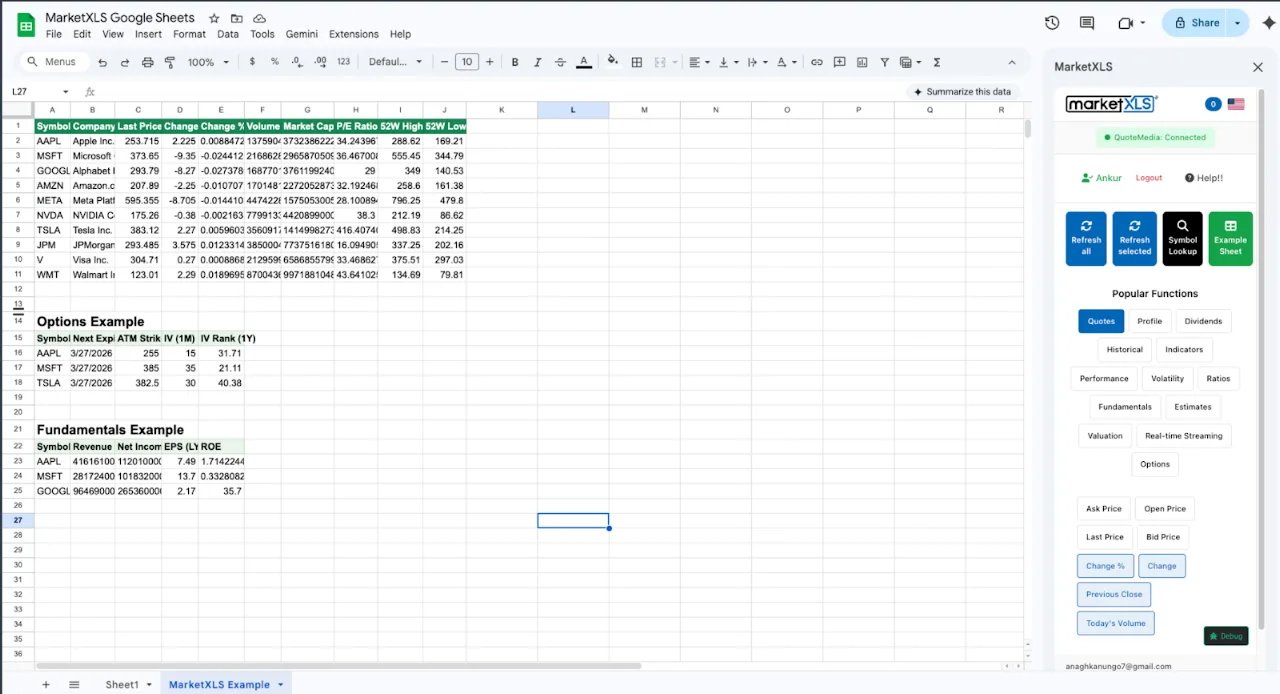
To build a dividend tracker in Google Sheets, you need a data add-on, because GOOGLEFINANCE returns no dividend yield, dividend per share, ex-dividend date, or payout ratio. With the MarketXLS Google Sheets add-on installed, =DividendYield(A2), =DividendPerShare(A2), =Ex_DividendDate(A2), and =PayoutRatio(A2) fill those columns, and =D2*DividendPerShare(A2) projects annual income per holding. The steps below build the full tracker, including a portfolio income summary and dividend safety checks.
Why GOOGLEFINANCE Cannot Track Dividends
GOOGLEFINANCE supports about 18 attributes for stocks. None of them are dividend-related. There is no:
=GOOGLEFINANCE("AAPL", "dividendyield")=GOOGLEFINANCE("AAPL", "dividendpershare")=GOOGLEFINANCE("AAPL", "exdividenddate")
This means income investors who use Google Sheets have no built-in way to track dividends. They end up manually looking up dividend data on other websites and copy-pasting it into their spreadsheet. That is slow, error-prone, and outdated by the time they finish.
Dividend Data Functions in Google Sheets with MarketXLS
Install MarketXLS from the Google Workspace Marketplace and you get instant access to dividend data:
=DividendYield("AAPL")       // Current dividend yield (%)
=DividendPerShare("AAPL")    // Annual dividend per share ($)
=Ex_DividendDate("AAPL")     // Next ex-dividend date
=PayoutRatio("AAPL")         // Payout ratio (%)
Formula documentation: DividendYield, DividendPerShare, Ex_DividendDate, PayoutRatio
These formulas work for dividend-paying US and Canadian stocks. The values refresh when the sheet recalculates, so the tracker reflects the latest data MarketXLS has for each company. The Google Sheets add-on uses the same pricing as regular MarketXLS (pricing).
Build a Dividend Tracker in Google Sheets: Step by Step
Step 1: Set Up the Tracker
Create a new Google Sheet with these column headers in Row 1:
| A | B | C | D | E | F | G | H | I | J |
|---|---|---|---|---|---|---|---|---|---|
| Symbol | Name | Price | Shares | Div Yield | Div/Share | Annual Income | Ex-Date | Payout Ratio | Sector |
Step 2: Enter Your Dividend Stocks
In column A starting at row 2, enter your dividend stock symbols:
AAPL
MSFT
JNJ
PG
KO
PEP
T
VZ
XOM
ABBV
Step 3: Add MarketXLS Formulas
Column B (Name):
=Name(A2)
Formula documentation: Name
Column C (Price):
=Last(A2)
Formula documentation: Last
Column D (Shares): Enter the number of shares you own manually.
Column E (Dividend Yield):
=DividendYield(A2)
Formula documentation: DividendYield
Column F (Dividend Per Share):
=DividendPerShare(A2)
Formula documentation: DividendPerShare
Column G (Annual Dividend Income):
=D2*DividendPerShare(A2)
Formula documentation: DividendPerShare
Column H (Ex-Dividend Date):
=Ex_DividendDate(A2)
Formula documentation: Ex_DividendDate
Column I (Payout Ratio):
=PayoutRatio(A2)
Formula documentation: PayoutRatio
Column J (Sector):
=Sector(A2)
Formula documentation: Sector
Copy all formulas down for each stock.
Step 4: Add Summary Section
At the top or bottom of your sheet, add these summary calculations:
Total Annual Dividend Income:   =SUM(G2:G100)
Monthly Dividend Income:        =SUM(G2:G100)/12
Portfolio Yield on Cost:        =SUM(G2:G100)/SUMPRODUCT(D2:D100, cost_basis_column)
Portfolio Current Yield:        =SUM(G2:G100)/SUMPRODUCT(D2:D100, C2:C100)
Number of Dividend Stocks:      =COUNTA(A2:A100)
Average Payout Ratio:           =AVERAGE(I2:I100)
Advanced Dividend Analysis in Google Sheets
Dividend Safety Analysis
The payout ratio tells you what percentage of earnings a company pays out as dividends. A lower payout ratio generally means the dividend is safer. Use conditional formatting to flag stocks with concerning payout ratios:
- Below 50%: Green (healthy, room to grow)
- 50% to 75%: Yellow (moderate)
- Above 75%: Red (may be unsustainable)
Historical Fundamental Data for Dividend Analysis
Use MarketXLS historical fundamental functions to analyze dividend sustainability:
=hf_revenue("AAPL", 2024)                    // Revenue trend
=hf_revenue("AAPL", 2023)
=hf_revenue("AAPL", 2022)
=hf_net_income("AAPL", 2024)                 // Earnings trend
=hf_free_cash_flow("AAPL", 2024)             // Cash flow to support dividends
=hf_dividends_per_basic_common_share("AAPL", 2024) // Historical dividends paid
Formula documentation: hf_revenue, hf_net_income, hf_free_cash_flow, hf_dividends_per_basic_common_share
A stock with growing revenue, growing earnings, and growing free cash flow is more likely to maintain and increase its dividend.
Yield on Cost Tracking
Yield on cost is the dividend yield based on your original purchase price, not the current stock price. This is a key metric for long-term dividend investors:
Yield on Cost = Annual Dividend Per Share / Your Average Cost Per Share
If you bought a stock at $50 and it now pays $3 per year in dividends, your yield on cost is 6%, even if the current stock price is $100 (which would show a 3% current yield).
Upcoming Ex-Dividend Dates
Sort your dividend tracker by the Ex-Date column to see which stocks have upcoming ex-dividend dates. You must own the stock before the ex-dividend date to receive the next payment. Use conditional formatting to highlight dates within the next 30 days.
Dividend Screening in Google Sheets
You can screen for new dividend stocks by running MarketXLS dividend functions across a ticker list and filtering the results with Google Sheets filters:
Screen for High Yield
Use MarketXLS =DividendYield() across a list of stocks and filter for yields above a certain threshold.
Screen for Low Payout Ratio
Use =PayoutRatio() to find stocks with sustainable dividends (payout ratio under 60%).
Screen for Dividend Growth
Use historical fundamental data to find stocks that have increased their dividend over multiple years:
=hf_dividends_per_basic_common_share("AAPL", 2024)
=hf_dividends_per_basic_common_share("AAPL", 2023)
=hf_dividends_per_basic_common_share("AAPL", 2022)
Formula documentation: hf_dividends_per_basic_common_share
Companies with consistently growing dividends are often called "dividend aristocrats" or "dividend growth stocks."
Dividend Tracker for Financial Advisors
Financial advisors managing income-focused client portfolios can use this Google Sheets dividend tracker to:
- Project annual income for each client based on their holdings
- Monitor ex-dividend dates to ensure clients own stocks before the record date
- Identify high-risk dividends using payout ratio analysis
- Share reports with clients through Google Sheets sharing
- Compare yield on cost across different client accounts
- Screen for new income opportunities using MarketXLS dividend data
GOOGLEFINANCE vs MarketXLS for Dividend Tracking
| Dividend Feature | GOOGLEFINANCE | MarketXLS |
|---|---|---|
| Dividend yield | Not available | =DividendYield() |
| Dividend per share | Not available | =DividendPerShare() |
| Ex-dividend date | Not available | =Ex_DividendDate() |
| Payout ratio | Not available | =PayoutRatio() |
| Historical dividends | Not available | =hf_dividends_per_basic_common_share() |
| Stock price | Up to 20-min delayed | =Last(): 15-min delayed on Standard, real-time on Advanced and Business |
| Revenue/earnings | Not available | hf_ historical fundamental functions |
| Screening | Not available | Filter a ticker list on any MarketXLS column |
Frequently Asked Questions
Can I track dividends in Google Sheets?
Not with GOOGLEFINANCE. GOOGLEFINANCE has no dividend data at all. Install MarketXLS from the Google Workspace Marketplace and use =DividendYield(), =DividendPerShare(), =Ex_DividendDate(), and =PayoutRatio() to track dividends in Google Sheets.
How do I calculate dividend income in Google Sheets?
Multiply your shares by the dividend per share: =shares * DividendPerShare("AAPL"). This gives you the projected annual dividend income for that holding.
How do I find ex-dividend dates in Google Sheets?
Use =Ex_DividendDate("AAPL") with MarketXLS. This returns the next ex-dividend date for any US or Canadian stock.
What is a good dividend yield?
It depends on the sector and your goals. Generally, yields between 2% and 5% are considered healthy for large-cap stocks. Yields above 6% to 8% may signal risk. Always check the payout ratio with =PayoutRatio() to assess dividend sustainability.
Can I screen for dividend stocks in Google Sheets?
Yes. Enter a list of stock symbols, use =DividendYield() for each, and filter for your target yield. Combine with =PayoutRatio() and =hf_free_cash_flow() to find stocks with sustainable, high-yield dividends.
Summary
GOOGLEFINANCE provides no dividend data. MarketXLS adds dividend yield, dividend per share, ex-dividend dates, payout ratios, and historical dividends as Google Sheets formulas. Use them to build a dividend tracker in Google Sheets that projects your annual income, flags upcoming payments, and helps you find new income opportunities.
Get MarketXLS for Google Sheets | View Pricing | Install from Google Workspace