
To build a financial dashboard in Google Sheets, install the MarketXLS Google Sheets add-on, list each holding with its share count and cost, and add formulas such as =Last(A2) for price, =DividendYield(A2) for yield, and =Beta(A2) for risk. Standard Sheets formulas (SUM, SUMPRODUCT) then roll the holdings up into account value, gain/loss, portfolio beta, and dividend income, and Google Sheets charts show allocation and income.
Try it in your own spreadsheet
Get the free MarketXLS sample workbook (.xlsx).
No account needed. MarketXLS live data requires a paid plan.
Explore more videos
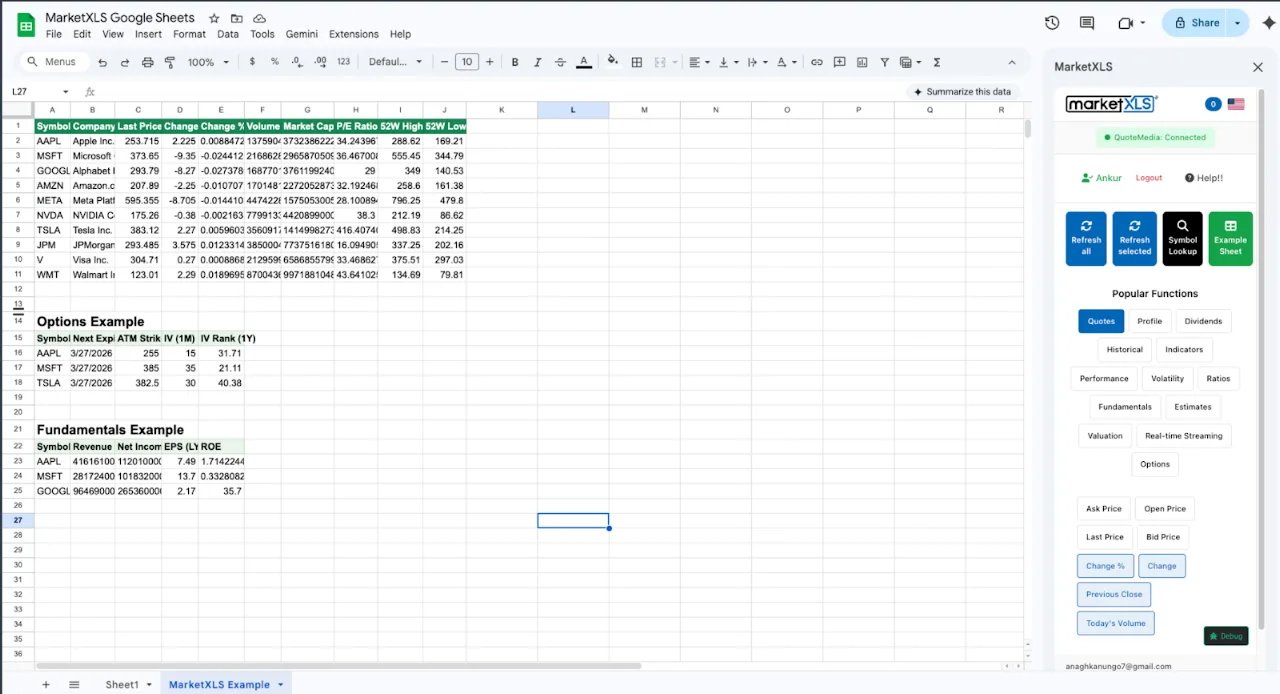
This guide lays out six dashboard sections (overview, performance, risk, dividends, fundamentals, sector allocation) with the formulas for each, written for financial advisors, RIAs, and portfolio managers who report to clients. On the Standard plan, US stock prices are 15-minute delayed; real-time data requires the Advanced or Business plan.
Why Financial Advisors Use Google Sheets
Advisors use Google Sheets for client dashboards because it runs in a browser, shares with a link, and costs nothing beyond a Google account:
Instant sharing: Share the sheet with a client's email address and they can open it in a browser without installing anything.
Real-time collaboration: Both you and your client can view the same data at the same time. Notes and comments happen right in the sheet.
Works everywhere: Desktop, tablet, phone. Your client checks their portfolio on their iPhone during lunch. It works.
Full control: You decide what data to show, how to format it, and what charts to include. No template limitations.
Cost effective: Google Sheets is free. The data cost is your MarketXLS subscription, which uses the same pricing as regular MarketXLS.
The limitation has been data. Google's built-in GOOGLEFINANCE function returns prices that can be delayed up to 20 minutes and only a few fundamental fields, with no dividend history or options data. MarketXLS adds dividend, fundamental, options, and historical functions to Sheets.
Dashboard Section 1: Portfolio Overview
The top of your financial dashboard should give clients an immediate snapshot of their portfolio.
Portfolio Header
Client Name:              [Client Name]
Account Value:            =SUM(market_value_range)
Total Cost Basis:         =SUM(cost_basis_range)
Total Gain/Loss ($):      =SUM(market_value_range)-SUM(cost_basis_range)
Total Gain/Loss (%):      =(SUM(market_value_range)-SUM(cost_basis_range))/SUM(cost_basis_range)
Today's Change ($):       =SUM(day_pl_range)
Annual Dividend Income:   =SUM(dividend_income_range)
Portfolio Yield:          =SUM(dividend_income_range)/SUM(market_value_range)
Formula documentation: Change
Holdings Table
| Symbol | Name | Shares | Price | Value | Weight | P/L | Div Yield |
|---|---|---|---|---|---|---|---|
| Formula | =Name(A2) | Manual | =Last(A2) | =C2*D2 | =E2/total | =E2-cost | =DividendYield(A2) |
Use =Last() or =QM_Last() for price so the dashboard shows current portfolio value when it recalculates. Prices are 15-minute delayed on the Standard plan and real-time on the Advanced and Business plans.
Dashboard Section 2: Performance Metrics
Show clients how their portfolio is performing relative to benchmarks:
Individual Stock Returns
=ChangeinPercent(A2) // Today's return
Formula documentation: ChangeinPercent
For year-to-date and historical returns, use historical price data:
=Close_Historical("AAPL", DATE(2026,1,2)) // Price at start of year
Formula documentation: Close_Historical
Calculate YTD return: =(Current Price - Jan 2 Price) / Jan 2 Price
Benchmark Comparison
Track the S&P 500 alongside the portfolio:
=Last("^SPX")                                    // Current S&P 500 level
=Close_Historical("^SPX", DATE(2026,1,2))        // S&P 500 at year start
Formula documentation: Last, Close_Historical
Show clients whether their portfolio is outperforming or underperforming the benchmark.
Dashboard Section 3: Risk Analytics
The risk section of the dashboard starts with beta, which MarketXLS returns per holding:
Individual Stock Beta:
=Beta(A2)
Formula documentation: Beta
Portfolio Beta (weighted average of all holdings):
=SUMPRODUCT(beta_range, weight_range)
You can add Sharpe ratio and maximum drawdown by calculating them from historical prices pulled with =Close_Historical. Risk figures give clients context for returns, which helps in review meetings.
Dashboard Section 4: Dividend Income
For income-focused clients, show a detailed dividend section:
Dividend Summary
Total Annual Income:    =SUM(dividend_income_range)
Monthly Income:         =SUM(dividend_income_range)/12
Portfolio Yield:        =SUM(dividend_income_range)/SUM(market_value_range)
Dividend Calendar
Create a table sorted by ex-dividend date to show upcoming payments:
=Ex_DividendDate(A2)       // Next ex-dividend date
=DividendPerShare(A2)      // Dividend amount per share
=C2*DividendPerShare(A2)   // Expected payment amount
Formula documentation: Ex_DividendDate, DividendPerShare
Sort by the ex-dividend date column so clients can see which payments are coming up next.
Dividend Safety
=PayoutRatio(A2) // What % of earnings goes to dividends
Formula documentation: PayoutRatio
Flag any stocks with payout ratios above 80% as potentially at risk for dividend cuts.
Dashboard Section 5: Fundamental Snapshot
Give clients a fundamental overview of each holding:
=PERatio(A2)               // Valuation
=Revenue(A2)               // Revenue
=EBITDA(A2)                // EBITDA
=Beta(A2)                  // Risk
=MarketCap(A2)             // Size
=Sector(A2)                // Sector
Formula documentation: PERatio, Revenue, EBITDA, Beta, Sector
For deeper analysis, link to a separate sheet with full financial statements:
=hf_revenue("AAPL", 2024)
=hf_net_income("AAPL", 2024)
=hf_free_cash_flow("AAPL", 2024)
=hf_total_debt("AAPL", 2024)
=hf_cash_and_equivalents("AAPL", 2024)
Formula documentation: hf_revenue, hf_net_income, hf_free_cash_flow, hf_total_debt, hf_cash_and_equivalents
Dashboard Section 6: Sector Allocation
Show clients how their portfolio is allocated across sectors:
Use =Sector(A2) for each holding, then calculate the weight in each sector. Create a pie chart in Google Sheets using this data.
Why Allocation Matters
A sector breakdown shows whether a client is overweight in any single sector, a common form of concentration risk in individual portfolios. This is valuable for review meetings and compliance documentation.
Dashboard Design Tips for Google Sheets
Use Conditional Formatting
- Green for positive P/L, red for negative
- Highlight ex-dividend dates within the next 30 days
- Flag high payout ratios (above 75%)
- Highlight stocks with RSI below 30 or above 70
Create Charts
Google Sheets supports line charts, bar charts, and pie charts. Use them for:
- Portfolio value over time (line chart)
- Sector allocation (pie chart)
- Top holdings by weight (bar chart)
- Monthly dividend income (bar chart)
Use Named Ranges
Name your data ranges for clarity. Instead of =SUM(F2:F100), use =SUM(MarketValues). This makes formulas readable and dashboards easier to maintain.
Protect Formulas
Use Google Sheets protection to lock cells with formulas so clients cannot accidentally break the dashboard. Lock all formula cells and only leave manual input cells (like shares owned) editable.
Multi-Client Dashboard Management
If you manage multiple client accounts, here are two approaches:
Approach 1: Separate Workbooks: Create a separate Google Sheets workbook for each client. Share each workbook individually. This keeps client data completely separated.
Approach 2: Tabs Within One Workbook: Keep one tab per client in an internal master workbook for your own use. Google Sheets sharing applies to the whole file, and protected ranges only restrict editing, not viewing, so anyone you share the file with can see every tab. Do not share a multi-client workbook with clients.
Frequently Asked Questions
Can I build client reports in Google Sheets?
Yes. With the MarketXLS Google Sheets add-on you can build client dashboards with portfolio prices, performance, dividend tracking, beta, and fundamentals, then share the file with the client. Use one file per client.
Is Google Sheets secure enough for client data?
Google Sheets uses the same security as Google Workspace, including encryption at rest and in transit. You can control sharing permissions, require Google account authentication, and restrict editing. For FINRA or SEC compliance, consult your compliance officer about your firm's specific requirements.
How do I share a financial dashboard with clients?
Click the Share button in Google Sheets, enter the client's email address, and select "Viewer" access. They receive a link and can view the live dashboard from any device. They cannot edit the data.
Does the data update automatically?
MarketXLS formulas recalculate when the sheet recalculates. Prices are 15-minute delayed on the Standard plan and real-time on Advanced and Business. Before relying on a shared dashboard, confirm what a client who does not have MarketXLS installed sees when they open it.
Can I use this for compliance documentation?
Google Sheets provides version history showing every change made to the dashboard. Combined with MarketXLS data, this creates an auditable record of portfolio positions and performance.
How much does this cost?
Google Sheets is free. MarketXLS for Google Sheets uses the same pricing as regular MarketXLS: US plans start at $70/month billed annually for Standard, with Advanced and Business plans for real-time data. See the pricing page for current plans.
Summary
A Google Sheets financial dashboard built with MarketXLS uses =Last() or =QM_Last() for prices, =DividendYield() and =Ex_DividendDate() for income, =hf_revenue() and =PERatio() for fundamentals, and =Beta() for risk, with ordinary Sheets formulas and charts on top. Share one file per client with Viewer access.
Get MarketXLS for Google Sheets | View Pricing | Install from Google Workspace