
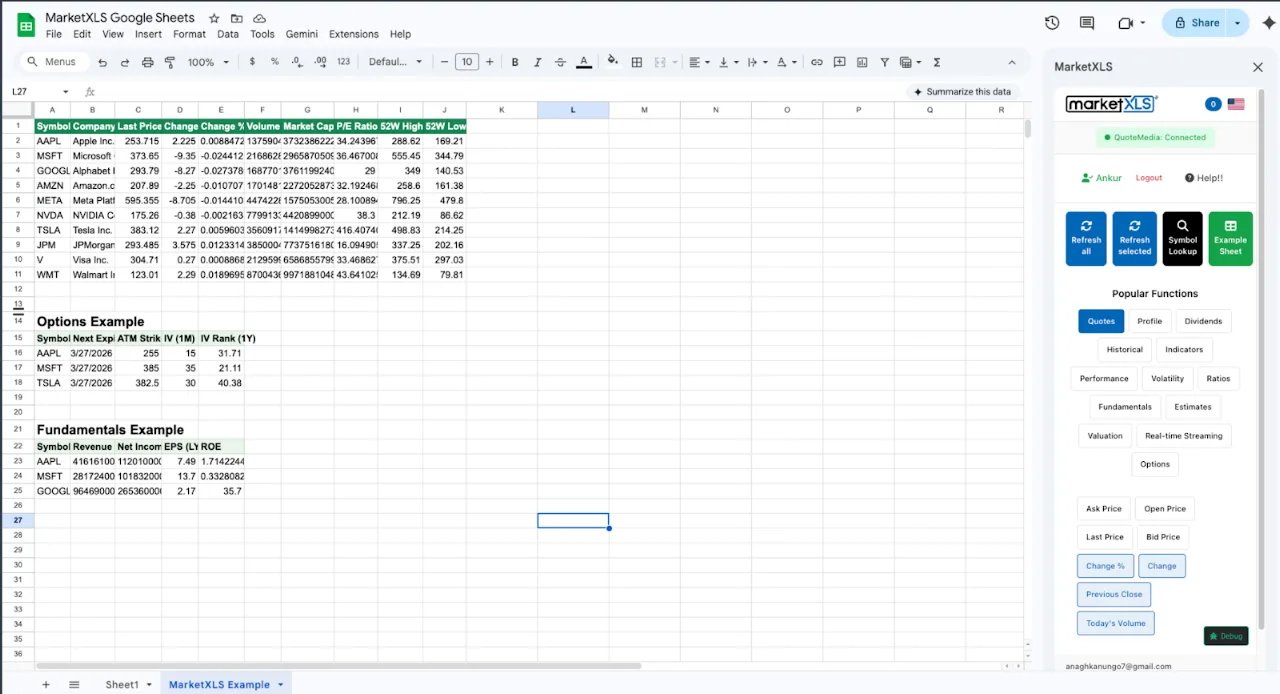
To build a portfolio tracker in Google Sheets, list each holding's ticker, shares, and average cost, pull the current price with a formula, and calculate market value, profit/loss, weights, and dividend income from those columns. GOOGLEFINANCE can supply prices, but not dividend yield, dividend per share, ex-dividend dates, or detailed fundamentals. The MarketXLS Google Sheets add-on adds those as formulas, for example =Last(A2), =DividendYield(A2), and =Ex_DividendDate(A2). MarketXLS for Google Sheets uses the same pricing as regular MarketXLS.
The steps below build the holdings sheet, then add dividends, fundamentals, allocation, risk, technical indicators, and historical performance.
Why Build a Portfolio Tracker in Google Sheets
A Google Sheets tracker is fully customizable, shareable by link, and runs in any browser. Compared with dedicated portfolio apps:
- Full customization: Build exactly the dashboard you want with the metrics that matter to you
- Collaboration: Share with your advisor, spouse, or trading partners with one click
- Access anywhere: Works on desktop, tablet, and phone through a browser
- No app lock-in: Your data stays in your spreadsheet, not trapped in someone else's platform
- Custom calculations: Use Google Sheets formulas for any metric you want to add
- Free platform: Google Sheets itself costs nothing to use
The limitation is data. GOOGLEFINANCE provides delayed prices and a few attributes (such as P/E, EPS, market cap, and beta), but no dividend data, no financial statements, and no risk metrics. The MarketXLS add-on supplies those.
Step 1: Portfolio Holdings Sheet
Create a sheet called "Holdings" with these columns:
| Column | Header | Description |
|---|---|---|
| A | Symbol | Stock ticker |
| B | Name | =Name(A2) |
| C | Shares | Number of shares owned |
| D | Avg Cost | Your average purchase price per share |
| E | Current Price | =Last(A2) |
| F | Market Value | =C2*E2 |
| G | Cost Basis | =C2*D2 |
| H | P/L ($) | =F2-G2 |
| I | P/L (%) | =H2/G2 |
| J | Day Change % | =ChangeinPercent(A2) |
| K | Day P/L ($) | =F2*(J2/100) |
Enter your holdings starting at row 2. Copy all formulas down.
Portfolio Summary Row
At the bottom of your holdings, add summary formulas:
Total Market Value:  =SUM(F2:F100)
Total Cost Basis:    =SUM(G2:G100)
Total P/L ($):       =SUM(H2:H100)
Total P/L (%):       =SUM(H2:H100)/SUM(G2:G100)
Total Day P/L:       =SUM(K2:K100)
Step 2: Add Dividend Tracking
Add dividend columns to your holdings sheet or create a separate "Dividends" sheet:
Column L (Dividend Yield):
=DividendYield(A2)
Formula documentation: DividendYield
Column M (Dividend Per Share):
=DividendPerShare(A2)
Formula documentation: DividendPerShare
Column N (Annual Dividend Income):
=C2*DividendPerShare(A2)
Formula documentation: DividendPerShare
Column O (Ex-Dividend Date):
=Ex_DividendDate(A2)
Formula documentation: Ex_DividendDate
Column P (Payout Ratio):
=PayoutRatio(A2)
Formula documentation: PayoutRatio
Dividend Summary
Total Annual Dividend Income:  =SUM(N2:N100)
Portfolio Yield on Cost:       =SUM(N2:N100)/SUM(G2:G100)
Portfolio Current Yield:       =SUM(N2:N100)/SUM(F2:F100)
This dividend tracking is impossible with GOOGLEFINANCE because it does not provide dividend yield, dividend per share, or ex-dividend dates.
Step 3: Add Fundamental Analysis
Create columns for fundamental data to evaluate each holding:
=PERatio(A2)              // P/E Ratio
=Beta(A2)                 // Beta
=EBITDA(A2)               // EBITDA
=Revenue(A2)              // Revenue
=MarketCap(A2)            // Market Cap
=BookValuePerShare(A2)    // Book Value
Formula documentation: PERatio, Beta, EBITDA, Revenue, BookValuePerShare
For deeper analysis, create a separate sheet with historical financials:
=hf_revenue("AAPL", 2024)           // 2024 Revenue
=hf_revenue("AAPL", 2023)           // 2023 Revenue
=hf_revenue("AAPL", 2022)           // 2022 Revenue
=hf_net_income("AAPL", 2024)        // Net Income
=hf_free_cash_flow("AAPL", 2024)    // Free Cash Flow
=hf_total_debt("AAPL", 2024)        // Total Debt
=hf_cash_and_equivalents("AAPL", 2024) // Cash
Formula documentation: hf_revenue, hf_net_income, hf_free_cash_flow, hf_total_debt, hf_cash_and_equivalents
This gives you a complete fundamental picture of each holding in your Google Sheets portfolio tracker.
Step 4: Portfolio Allocation Analysis
Add allocation calculations to understand your portfolio composition:
Weight of each holding:
=F2/SUM($F$2:$F$100)
Sector allocation: Since MarketXLS provides =Sector(A2) for each stock, you can build a sector breakdown using SUMIFS:
=SUMPRODUCT((sector_range="Technology")*(value_range))/SUM(value_range)
This shows you what percentage of your portfolio is in each sector, helping you identify concentration risk.
Step 5: Add Risk Analytics
Portfolio beta is the weighted average of each holding's beta:
Beta for each holding:
=Beta(A2)
Formula documentation: Beta
Portfolio Beta (weighted average):
=SUMPRODUCT(beta_column, weight_column)
The MarketXLS function library also includes Sharpe ratio, Sortino ratio, and drawdown functions (for example =DrawdownOneYear(A2)). Check /formulas for which ones are available in Google Sheets.
Step 6: Technical Analysis Overlay
Add technical indicator columns to identify entry and exit points for your holdings:
=RSI(A2)                          // RSI
=SimpleMovingAverage(A2, 50)      // 50-day SMA
=SimpleMovingAverage(A2, 200)     // 200-day SMA
=MACD(A2)                         // MACD
Formula documentation: RSI, SimpleMovingAverage
Use conditional formatting to highlight:
- RSI below 30 (green, potentially oversold)
- RSI above 70 (red, potentially overbought)
- Price below 200-day SMA (yellow, downtrend warning)
Step 7: Historical Performance
Track how your portfolio has performed over time using historical price data:
=QM_GetHistory("AAPL")
=Close_Historical("AAPL", "2025-01-02")
Formula documentation: QM_GetHistory, Close_Historical
You can calculate returns for each holding over any time period:
Return = (Current Price - Historical Price) / Historical Price
Build a performance chart by tracking your total portfolio value daily or weekly in a separate sheet.
Step 8: QuoteMedia Quote Functions
MarketXLS quotes come from QuoteMedia. The QM_ functions return a quote snapshot that updates when the sheet recalculates:
=QM_Last(A2)              // Last price
=QM_Bid(A2)               // Bid
=QM_Ask(A2)               // Ask
=QM_ChangePercent(A2)     // % change
=QM_ShareVolume(A2)       // Volume
Formula documentation: QM_Last, QM_Bid, QM_Ask, QM_ChangePercent, QM_ShareVolume
Whether these are real-time depends on your plan: US stock quotes are 15-minute delayed on the Standard plan and real-time on the Advanced and Business plans. See /pricing.
Portfolio Tracker for Financial Advisors
Financial advisors can use this Google Sheets portfolio tracker for client management:
Client dashboards: Share a view-only link with each client so they can see their current portfolio performance. Google Sheets permissions let you control who sees what.
Multi-client tracking: Create a separate sheet for each client within the same workbook, or use separate workbooks per client.
Reporting: Use the data to generate quarterly performance reports, dividend income summaries, and risk analysis documents.
Compliance: Keep a record of all holdings, transactions, and performance data in a structured format that is easy to audit.
GOOGLEFINANCE Portfolio Tracker vs MarketXLS Portfolio Tracker
| Feature | GOOGLEFINANCE | MarketXLS |
|---|---|---|
| Stock prices | Delayed up to 20 minutes | =Last() and =QM_Last(): 15-min delayed on Standard, real-time on Advanced and Business |
| Dividend yield | Not available | =DividendYield() |
| Dividend per share | Not available | =DividendPerShare() |
| Ex-dividend date | Not available | =Ex_DividendDate() |
| Company name | Yes ("name" attribute) | =Name() |
| Sector | Not available | =Sector() |
| P/E ratio | Basic | =PERatio() |
| Revenue | Not available | =Revenue() and =hf_revenue() |
| Beta | Yes ("beta" attribute) | =Beta() |
| RSI | Manual calculation | =RSI() |
| Moving averages | Manual calculation | =SimpleMovingAverage() |
| Options data | None | =QM_GetOptionChain() |
| Historical data | Limited | =QM_GetHistory() |
| Risk analytics | None | Sharpe, Sortino, drawdown functions |
Frequently Asked Questions
How do I track my stock portfolio in Google Sheets?
Create a spreadsheet with your stock symbols, shares owned, and average cost. Use MarketXLS functions like =Last(A2) for current prices, then calculate market value, P/L, and other metrics with standard Google Sheets formulas.
Can I track dividends in a Google Sheets portfolio tracker?
Yes. MarketXLS provides =DividendYield(), =DividendPerShare(), =Ex_DividendDate(), and =PayoutRatio(). Multiply =DividendPerShare() by your shares to calculate annual dividend income for each holding.
Is a Google Sheets portfolio tracker better than a portfolio app?
It depends on what you need. A Google Sheets tracker is better for customization and sharing: you choose every metric and can add any of the 1,000+ MarketXLS data functions. A portfolio app is simpler to set up and may sync holdings from your broker automatically.
Can my financial advisor see my Google Sheets portfolio tracker?
Yes. Share your Google Sheet with your advisor using their email address. You can give them view-only access or edit access depending on your preference.
How do I get real-time portfolio value in Google Sheets?
Use =Last() or =QM_Last() for each holding price, multiply by shares, and sum the total. The value updates when the sheet recalculates. It is real-time on the Advanced and Business plans; on the Standard plan stock quotes are 15-minute delayed.
Summary
A Google Sheets portfolio tracker built with MarketXLS covers prices, P/L tracking, dividend monitoring, fundamental analysis, technical indicators, risk analytics, and historical performance data. All in a spreadsheet you can customize, share, and access from any device.
Get MarketXLS for Google Sheets | View Pricing | Install from Google Workspace