
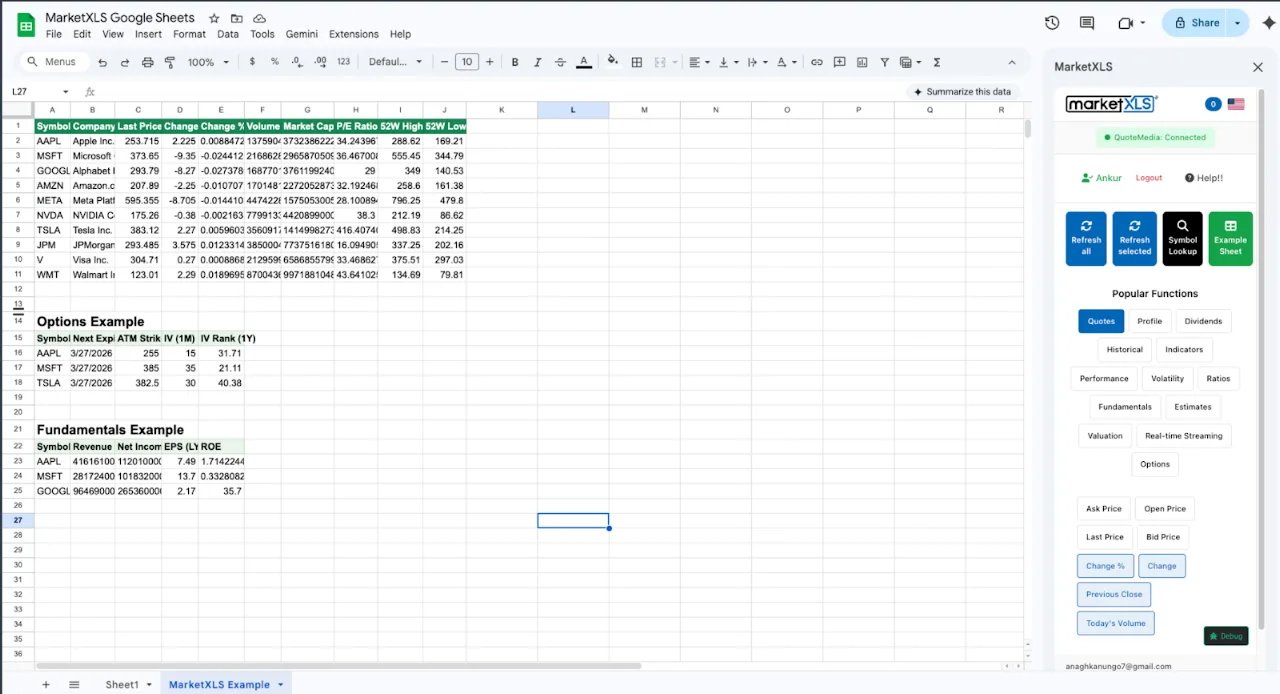
To build a stock tracker in Google Sheets, list your tickers in column A and add one formula per column: with the MarketXLS add-on, =Last(A2) returns the price, =PERatio(A2) the P/E, =DividendYield(A2) the dividend yield, and =RSI(A2) the relative strength index. Copy the row down and the tracker refreshes as the sheet recalculates. Built-in GOOGLEFINANCE covers price and a limited set of attributes but has no dividend yield, technical indicators, or financial statements, which is the gap MarketXLS fills.
Data speed depends on the MarketXLS plan: stock quotes are 15-minute delayed on Standard and real-time on Advanced and Business. Google Sheets uses the same pricing as regular MarketXLS. The steps below build the tracker in about 10 minutes.
The Problem with GOOGLEFINANCE Stock Trackers
GOOGLEFINANCE works for a basic watchlist but lacks dividend, technical, and fundamental data. Typical formulas look like this:
=GOOGLEFINANCE("AAPL", "price")
=GOOGLEFINANCE("AAPL", "changepct")
=GOOGLEFINANCE("AAPL", "volume")
This works for a basic watchlist, but you quickly hit limits:
- Prices can be delayed up to 20 minutes
- No dividend yield so you cannot screen income stocks
- Only basic valuation attributes (PE and EPS)
- No RSI, MACD, or moving averages for technical analysis
- No bid/ask spread data for trading decisions
- Occasional #N/A errors that break formulas downstream
- No fundamental data like revenue, earnings, or cash flow
MarketXLS adds functions for each of these gaps. Price speed still depends on your plan (see the table below).
Step 1: Set Up Your Google Sheets Stock Tracker
Create a new Google Sheet. Install MarketXLS from the Google Workspace Marketplace and enter your license key in the sidebar.
Header Row
Set up your columns in Row 1:
| A | B | C | D | E | F | G | H | I | J |
|---|---|---|---|---|---|---|---|---|---|
| Symbol | Company | Price | Change % | Volume | P/E | Div Yield | 52W High | 52W Low | Sector |
Enter Your Stock Symbols
In column A starting at row 2, enter your stock symbols:
AAPL
MSFT
GOOGL
AMZN
TSLA
NVDA
META
JPM
JNJ
V
Step 2: Add Real-Time Stock Price Formulas
In each column, enter the MarketXLS formula for row 2, then copy it down:
Column B (Company Name):
=Name(A2)
Formula documentation: Name
Column C (Price):
=Last(A2)
Formula documentation: Last
Column D (Change %):
=ChangeinPercent(A2)
Formula documentation: ChangeinPercent
Column E (Volume):
=Volume(A2)
Formula documentation: Volume
Column F (P/E Ratio):
=PERatio(A2)
Formula documentation: PERatio
Column G (Dividend Yield):
=DividendYield(A2)
Formula documentation: DividendYield
Column H (52-Week High):
=FiftyTwo_weekHigh(A2)
Formula documentation: FiftyTwo_weekHigh
Column I (52-Week Low):
=FiftyTwo_weekLow(A2)
Formula documentation: FiftyTwo_weekLow
Column J (Sector):
=Sector(A2)
Formula documentation: Sector
Copy all formulas down for each stock. The tracker now shows price, daily change, volume, P/E, dividend yield, 52-week range, and sector for every ticker. Dividend yield and sector are not available from GOOGLEFINANCE.
Step 3: Add Technical Indicators
Extend your stock tracker with technical analysis columns:
Column K (RSI):
=RSI(A2)
Formula documentation: RSI
Column L (50-Day SMA):
=SimpleMovingAverage(A2, 50)
Formula documentation: SimpleMovingAverage
Column M (200-Day SMA):
=SimpleMovingAverage(A2, 200)
Formula documentation: SimpleMovingAverage
Column N (MACD):
=MACD(A2)
These columns replace indicators you would otherwise calculate yourself from GOOGLEFINANCE historical data.
Using Technical Indicators for Trading Signals
You can add conditional logic to flag trading signals:
- RSI below 30: Stock may be oversold (potential buy signal)
- RSI above 70: Stock may be overbought (potential sell signal)
- Price above 200-day SMA: Uptrend
- Price below 200-day SMA: Downtrend
- 50-day SMA crosses above 200-day SMA: Golden cross (bullish)
Use Google Sheets conditional formatting to highlight cells based on these rules. For example, set RSI cells below 30 to green and above 70 to red.
Step 4: Add Fundamental Data
Add columns for deeper fundamental analysis:
Column O (Revenue):
=Revenue(A2)
Formula documentation: Revenue
Column P (EBITDA):
=EBITDA(A2)
Formula documentation: EBITDA
Column Q (Beta):
=Beta(A2)
Formula documentation: Beta
Column R (Market Cap):
=MarketCap(A2)
Column S (Book Value):
=BookValuePerShare(A2)
Formula documentation: BookValuePerShare
For detailed financial statements, you can create a separate sheet with historical data:
=hf_revenue("AAPL", 2024)
=hf_revenue("AAPL", 2023)
=hf_revenue("AAPL", 2022)
=hf_net_income("AAPL", 2024)
=hf_free_cash_flow("AAPL", 2024)
Formula documentation: hf_revenue, hf_net_income, hf_free_cash_flow
Step 5: Add a Stock Summary Dashboard
Create a summary section at the top of your Google Sheets stock tracker:
Total stocks tracked: =COUNTA(A2:A100)
Average P/E: =AVERAGE(F2:F100)
Average Dividend Yield: =AVERAGE(G2:G100)
Top Gainer: Use =INDEX(A2:A100, MATCH(MAX(D2:D100), D2:D100, 0)) to find the stock with the highest daily gain.
Top Loser: Use =INDEX(A2:A100, MATCH(MIN(D2:D100), D2:D100, 0)) to find the stock with the biggest daily loss.
Step 6: Add Real-Time Data with QuoteMedia
The QM_ functions pull quotes from QuoteMedia. They are real-time on the Advanced and Business plans and 15-minute delayed on Standard:
=QM_Last(A2)            // Last price
=QM_Bid(A2)             // Bid
=QM_Ask(A2)             // Ask
=QM_ChangePercent(A2)   // % change
=QM_ShareVolume(A2)     // Volume
Formula documentation: QM_Last, QM_Bid, QM_Ask, QM_ChangePercent, QM_ShareVolume
QuoteMedia is a licensed market data provider. Real-time exchange data can require QuoteMedia exchange agreements; see QuoteMedia setup.
Step 7: Add Options Data (Optional)
If you trade options, add an options section to your stock tracker:
=QM_GetOptionChain(A2)
Formula documentation: QM_GetOptionChain
This pulls the options chain for the stock, including bid, ask, volume, open interest, implied volatility, and Greeks. Options data is end-of-day on the Standard plan and real-time streaming on Advanced and Business. You can track covered call opportunities, monitor your options positions, and analyze new trades, all within your Google Sheets stock tracker.
Sharing Your Google Sheets Stock Tracker
Google Sheets makes a stock tracker easy to share. You can:
- Share with your financial advisor so they can see your portfolio
- Collaborate with trading partners on a shared watchlist
- Present to clients if you are a financial advisor building client dashboards
- Access from any device including phones, tablets, and Chromebooks
The values in the sheet are visible to anyone you share it with. Formulas recalculate through the MarketXLS add-on, so check with MarketXLS support how refresh works for collaborators who do not have their own license.
GOOGLEFINANCE Stock Tracker vs MarketXLS Stock Tracker
| Feature | GOOGLEFINANCE Tracker | MarketXLS Tracker |
|---|---|---|
| Stock prices | Up to 20-min delayed | 15-min delayed on Standard; real-time on Advanced and Business |
| Company name | Not available | =Name() |
| Sector | Not available | =Sector() |
| Dividend yield | Not available | =DividendYield() |
| P/E ratio | Basic | =PERatio() with more depth |
| Technical indicators | Manual calculation | =RSI(), =SimpleMovingAverage(), =MACD() |
| Fundamental data | PE + EPS only | Financial statement items via hf_* functions |
| Options data | None | =QM_GetOptionChain() |
| Historical data | Limited | =QM_GetHistory() |
| Data source | QuoteMedia quotes; fundamentals via the MarketXLS API | |
| Bid/Ask | Not available | =Bid(), =Ask(), =QM_Bid(), =QM_Ask() |
Frequently Asked Questions
How do I build a stock tracker in Google Sheets?
Install MarketXLS from the Google Workspace Marketplace. Enter stock symbols in column A, then use formulas like =Last(A2) for price, =ChangeinPercent(A2) for daily change, =DividendYield(A2) for dividends, and =RSI(A2) for technical indicators. Copy formulas down for each stock.
Can I get real-time stock prices in a Google Sheets tracker?
Yes, on the MarketXLS Advanced and Business plans, which include real-time streaming US stock quotes. The Standard plan's stock quotes are 15-minute delayed. GOOGLEFINANCE prices can be delayed up to 20 minutes.
How many stocks can I track in Google Sheets with MarketXLS?
For on-demand formulas, the practical limit is how many formulas your Google Sheet can recalculate comfortably. Streaming uses one live symbol subscription per unique symbol, and options tracking is limited to 300 symbols.
Can I share my Google Sheets stock tracker with others?
Yes. Google Sheets sharing works with a MarketXLS tracker, and collaborators see the values in the sheet. Confirm with support@marketxls.com how refresh works for collaborators without their own MarketXLS license.
Does the stock tracker work on mobile?
Yes. Google Sheets works on iOS and Android. Your MarketXLS stock tracker will display current data on mobile devices through the Google Sheets app.
Summary
A GOOGLEFINANCE tracker gives you a basic watchlist with delayed prices. A MarketXLS tracker in Google Sheets adds dividend yields, technical indicators, fundamental data, and options data, with real-time prices on the Advanced and Business plans.
The setup takes about 10 minutes. Enter your symbols, add your formulas, and the tracker refreshes as the sheet recalculates.
Get MarketXLS for Google Sheets | View Pricing | Install from Google Workspace