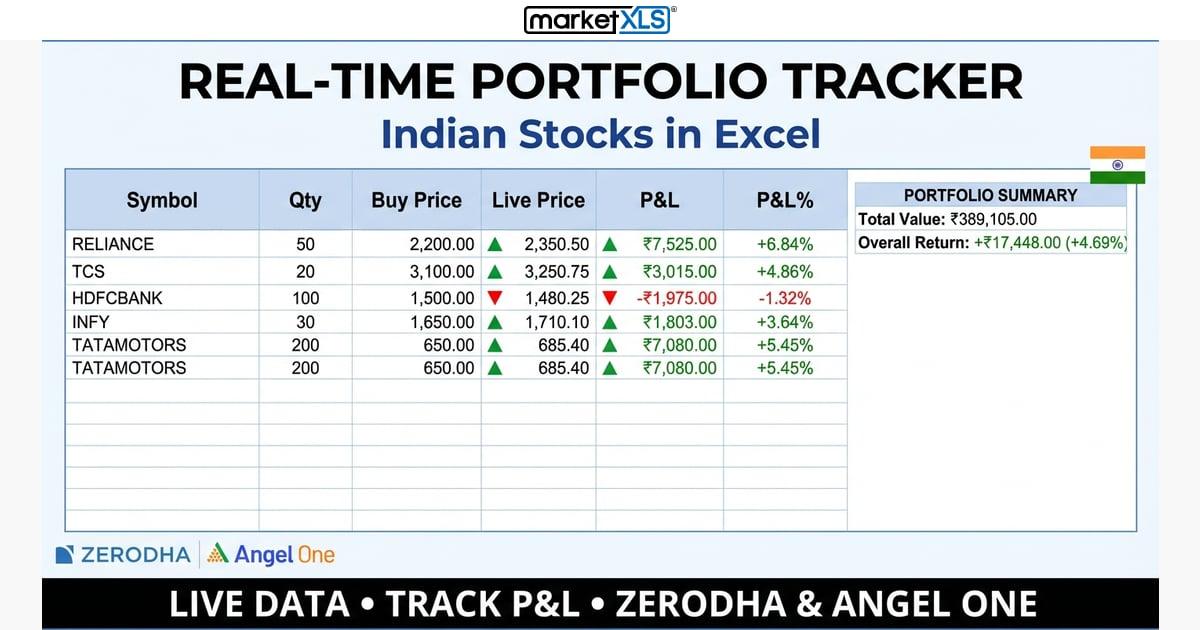
Why You Need a Real-Time Portfolio Tracker
If you invest in Indian stocks, you have probably experienced the frustration of manually updating your Excel portfolio tracker. You copy prices from Zerodha Kite or Angel One, paste them into cells, and by the time you finish updating 20 stocks, the first price is already stale.
A real-time portfolio tracker solves this completely. Prices update automatically, your P&L recalculates instantly, and you spend your time analysing instead of doing data entry.
In this guide, you will build a fully functional portfolio tracker in Excel that streams live NSE and BSE stock prices directly from your Zerodha or Angel One account using MarketXLS India.
What You Will Build
By the end of this guide, your Excel portfolio tracker will:
- Stream live prices for every stock in your portfolio
- Calculate real-time P&L (both absolute and percentage)
- Show day change for each holding
- Display portfolio allocation percentages
- Update automatically with no manual refresh
Time required: 20 minutes from start to a fully working tracker.
Prerequisites
Before you start, make sure you have:
- Microsoft Excel — Excel 2016 or later (Windows, Mac, or Excel Online)
- MarketXLS India subscription — Get started here
- A broker account — Zerodha or Angel One
Step 1: Set Up Your Portfolio Table
Open a new Excel workbook and create the following column headers in Row 1:
| Column | Header | Purpose |
|---|---|---|
| A | Symbol | Stock ticker (e.g., RELIANCE) |
| B | Qty | Number of shares you hold |
| C | Buy Price | Your average purchase price |
| D | Invested | Total cost basis |
| E | Live Price | Real-time price from broker |
| F | Current Value | Live market value |
| G | P&L | Profit or loss in rupees |
| H | P&L % | Return percentage |
| I | Day Change | Today's price change |
| J | Prev Close | Yesterday's closing price |
Enter your holdings starting from Row 2. For example:
| Symbol | Qty | Buy Price |
|---|---|---|
| RELIANCE | 50 | 2450 |
| TCS | 25 | 3800 |
| HDFCBANK | 100 | 1620 |
| INFY | 75 | 1480 |
| TATAMOTORS | 200 | 720 |
Step 2: Add Live Prices with MarketXLS India
This is where your tracker comes alive. In column E (Live Price), use the MarketXLS streaming functions to pull real-time data from your broker.
If You Use Zerodha
In cell E2, enter:
=mxlsIN.ZerodhaLast(A2&":IN")
This streams the last traded price for RELIANCE from your Zerodha connection. The A2&":IN" part automatically appends the :IN suffix that MarketXLS needs for Indian stocks.
If You Use Angel One
In cell E2, enter:
=mxlsIN.AngelOneLast(A2&":IN")
Copy this formula down for all your holdings. Every cell will now stream live prices that update automatically.
Adding Previous Close for Day Change
In column J (Prev Close), enter:
=mxlsIN.ZerodhaPreviousClose(A2&":IN")
Or for Angel One:
=mxlsIN.AngelOnePreviousClose(A2&":IN")
Step 3: Calculate Portfolio Metrics
Now add the formulas that turn raw prices into actionable insights.
Invested Amount (Column D)
=B2*C2
This gives you the total cost basis for each holding.
Current Value (Column F)
=B2*E2
Since E2 streams live, this value updates in real time.
Profit & Loss in Rupees (Column G)
=F2-D2
P&L Percentage (Column H)
=(F2-D2)/D2
Format this column as percentage. You will see your returns update tick by tick as the market moves.
Day Change (Column I)
=E2-J2
This shows how much each stock has moved today.
Step 4: Add Portfolio Summary
Above or below your holdings table, create a summary section:
| Label | Formula | What It Shows |
|---|---|---|
| Total Invested | =SUM(D2:D20) | Total capital deployed |
| Total Current Value | =SUM(F2:F20) | Live portfolio value |
| Total P&L | =SUM(G2:G20) | Overall profit/loss |
| Overall Return % | =SUM(G2:G20)/SUM(D2:D20) | Portfolio return |
| Day P&L | =SUMPRODUCT(I2:I20,B2:B20) | Today's gain/loss |
These summary cells update in real time as prices stream in.
Step 5: Add Volume and Buy/Sell Pressure
For active traders who want deeper insight, add columns for live volume and order book data:
Live Volume
=mxlsIN.ZerodhaVolume(A2&":IN")
Buy Quantity (Bid Depth)
=mxlsIN.ZerodhaBuyQuantity(A2&":IN")
Sell Quantity (Ask Depth)
=mxlsIN.ZerodhaSellQuantity(A2&":IN")
Percentage Change
=mxlsIN.ZerodhaChange(A2&":IN")
These additional data points help you spot unusual activity in your holdings during market hours.
Step 6: Track Nifty 50 and Bank Nifty Alongside Your Portfolio
Add a section to track the major indices so you can compare your portfolio performance against the benchmark:
=mxlsIN.ZerodhaLast("NIFTY:IN")
=mxlsIN.ZerodhaLast("BANKNIFTY:IN")
You can also track the day's range for Nifty:
=mxlsIN.ZerodhaHigh("NIFTY:IN")
=mxlsIN.ZerodhaLow("NIFTY:IN")
=mxlsIN.ZerodhaOpen("NIFTY:IN")
Step 7: Conditional Formatting for Visual Cues
Make your tracker visually informative:
- Select the P&L column (G2:G20)
- Go to Home → Conditional Formatting → Color Scales
- Set green for positive values and red for negative values
Repeat for the Day Change column. Now you can spot winners and losers at a glance.
Complete Portfolio Tracker Layout
Here is what your finished tracker looks like:
| Symbol | Qty | Buy Price | Invested | Live Price | Current Value | P&L | P&L % | Day Change | Prev Close |
|---|---|---|---|---|---|---|---|---|---|
| RELIANCE | 50 | 2450 | 122500 | live | auto | auto | auto | auto | auto |
| TCS | 25 | 3800 | 95000 | live | auto | auto | auto | auto | auto |
| HDFCBANK | 100 | 1620 | 162000 | live | auto | auto | auto | auto | auto |
| INFY | 75 | 1480 | 111000 | live | auto | auto | auto | auto | auto |
| TATAMOTORS | 200 | 720 | 144000 | live | auto | auto | auto | auto | auto |
Cells marked "live" stream automatically. Cells marked "auto" recalculate from live data.
Tips for Power Users
Track Multiple Brokers
If you trade on both Zerodha and Angel One, you can mix and match functions in the same sheet. Use ZerodhaLast for stocks traded via Zerodha and AngelOneLast for stocks traded via Angel One.
Add Allocation Percentages
Create a column that shows what percentage of your portfolio each stock represents:
=F2/SUM($F$2:$F$20)
This updates in real time, so you always know if any position is getting too large.
Last Trade Time
To see when a stock last traded (useful for less liquid stocks):
=mxlsIN.ZerodhaLastTradeTime(A2&":IN")
Frequently Asked Questions
Does this work on Mac?
Yes. MarketXLS India works on Windows, Mac, and Excel Online (Office 365).
Do I need to know VBA or coding?
No. Everything uses simple Excel formulas. If you can type =SUM(), you can build this tracker.
How often do prices update?
Prices stream live via WebSocket connection from your broker. They update as fast as the market ticks — no manual refresh needed.
Can I track options and futures too?
Yes. Use the same ZerodhaLast or AngelOneLast functions with option or future symbols. For example:
=mxlsIN.ZerodhaLast("NIFTY23OCT24000CE:IN")
If you trade Nifty or Bank Nifty options, see our guide to building a live option Greeks calculator in Excel — it covers Delta, Gamma, Vega, and IV with the same MarketXLS India formulas.
What happens after market hours?
The tracker shows the last traded prices. When the market opens the next day, streaming resumes automatically.
Get Started
Building a real-time portfolio tracker in Excel for Indian stocks takes just 20 minutes with MarketXLS India. No VBA, no coding, no copy-pasting from websites.
Want a head start? Download our free Excel stock price template for Indian stocks — it comes pre-built with a portfolio tracker, stock watchlist, and Nifty option chain. Or if you trade intraday, check out our intraday trading dashboard guide.
Start your MarketXLS India subscription →
Pricing starts at ₹3,500/month with support for both Zerodha and Angel One. Cancel anytime.