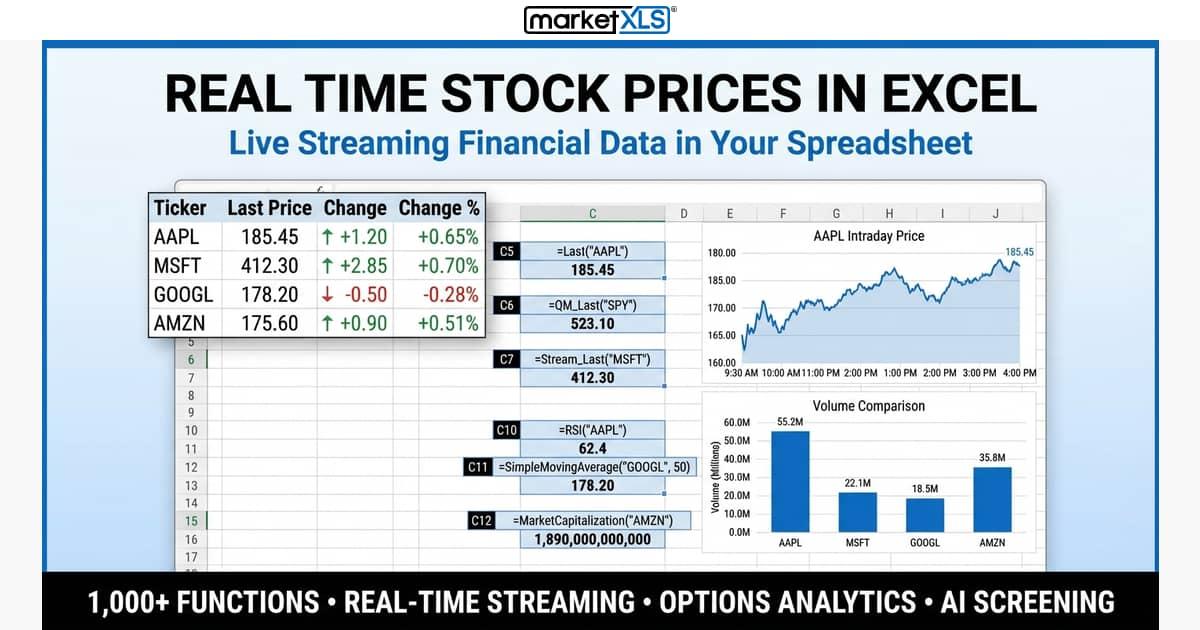
Real time stock prices in excel — if you manage client portfolios, run a family office, or oversee assets for institutional investors, you already know that stale data costs money. A price that refreshed five minutes ago might as well be yesterday's close when you're rebalancing a portfolio or monitoring risk exposure across dozens of positions. The challenge has always been getting truly live, streaming stock prices inside the spreadsheet environment where financial professionals actually do their work.
This guide walks you through every practical method for pulling real time stock prices into Excel — from free built-in options to professional streaming solutions. We'll compare the trade-offs honestly and show you exactly how each approach works, including the real formulas you can use today.
Methods Compared: Getting Real Time Stock Prices in Excel
Before diving into each method, here's a side-by-side comparison so you can quickly identify which approach fits your workflow:
| Method | Real-Time? | Auto-Refresh | Data Coverage | Setup Complexity | Best For |
|---|---|---|---|---|---|
| Microsoft STOCKHISTORY + Stocks Data Type | Delayed 15-20 min | Manual refresh | US equities only | Low | Casual users |
| Power Query Web Connection | Delayed | Scheduled (min 1 min) | Varies by source | Medium | One-time data pulls |
| Broker RTD Links (Thinkorswim, IBKR) | True real-time | Automatic streaming | Depends on broker | High | Active traders with existing accounts |
MarketXLS =Stream_Last() | True real-time streaming | Automatic streaming | 10,000+ symbols, options, futures | Low | Financial advisors, asset managers, wealth managers |
MarketXLS =Last() / =QM_Last() | Near real-time | On recalc | Full market coverage | Low | Research and analysis workflows |
| DDE Links (Legacy) | Real-time | Automatic | Limited | Very High | Legacy systems only |
Method 1: Microsoft's Built-In Stock Data Type
Excel 365 includes a Stocks data type and the STOCKHISTORY function. Here's how it works:
Step-by-Step
- Type a ticker symbol like
AAPLinto a cell - Select the cell, go to the Data tab, and click Stocks
- Excel converts the cell into a linked data type
- Click the small icon that appears to see available fields like Price, Volume, and Market Cap
- Use formulas like
=A1.Priceto extract specific fields
Limitations
While this approach is free and built into Excel, there are significant drawbacks for professional use:
- Data is delayed 15-20 minutes — not suitable for real-time monitoring
- No automatic streaming — you must manually refresh or press F9
- Limited to basic equities — no options chains, no futures, no streaming quotes
- No historical data granularity — the
STOCKHISTORYfunction provides daily data only - Coverage gaps — many international markets, OTC stocks, and smaller-cap names are missing
- No customization — you cannot build models that react to live price changes
For financial advisors and wealth managers who need to monitor client portfolios in real time, these limitations make the built-in option inadequate for professional workflows.
Method 2: Power Query Web Connections
Power Query can pull data from web-based financial data sources into Excel. This is a step up from the built-in data type but still has significant limitations.
Step-by-Step
- Go to Data → Get Data → From Web
- Enter the URL of a financial data source that provides tabular data
- Select the table you want to import
- Click Load to bring it into your worksheet
- Set up a scheduled refresh (minimum interval: 1 minute in most configurations)
Limitations
- Not truly real-time — even with a 1-minute refresh, you're always looking at slightly stale data
- Rate limiting — most free web sources throttle frequent requests
- Fragile connections — web page layouts change, breaking your queries without warning
- Manual maintenance — when a connection breaks, you need to rebuild it
- No streaming capability — each refresh is a complete data pull, not a live stream
Power Query is excellent for periodic data imports and building reports, but it was never designed for live market monitoring.
Method 3: Broker RTD Links (Thinkorswim, Interactive Brokers)
If you already have a brokerage account with Thinkorswim or Interactive Brokers, you can use RTD (Real-Time Data) links to stream prices into Excel.
How It Works
RTD links use the =RTD() function in Excel to connect to a local application running on your machine. The broker's desktop platform acts as a data server, pushing updates to Excel cells in real time.
For example, with Thinkorswim:
=RTD("tos.rtd",,"AAPL","LAST")
Limitations
- Requires a funded brokerage account — this isn't a standalone data solution
- Desktop application must be running — the broker platform needs to stay open
- Platform instability — RTD connections frequently drop, especially with large numbers of symbols
- Symbol limits — most brokers cap the number of concurrent RTD streams (often 100-500 symbols)
- Not portable — the workbook only works on the specific machine with the broker software installed
- Compliance concerns — for registered investment advisors, mixing brokerage and research tools creates audit trail complications
- No options analytics — while you can stream option prices, calculating Greeks and building chains requires additional tools
For more on how MarketXLS compares to broker-based streaming, see our detailed MarketXLS vs Thinkorswim streaming data comparison.
Method 4: MarketXLS Streaming Formulas — The Professional Solution
This is where real time stock prices in excel become genuinely effortless. MarketXLS is an Excel add-in designed specifically for financial professionals who need live market data inside their spreadsheets without the complexity of broker integrations or fragile web connections.
Getting Started
- Install MarketXLS from marketxls.com
- Open Excel — MarketXLS loads automatically as a ribbon tab
- Start typing formulas — that's it
The Core Streaming Formula
The most powerful formula for real-time streaming is:
=Stream_Last("AAPL")
This single formula streams the last traded price for any symbol directly into your cell. It updates automatically — no manual refresh, no F9, no scheduled query. The data flows in continuously as trades happen.
For QuoteMedia-sourced data, you can also use:
=QM_Stream_Last("AAPL")
Both formulas provide true streaming data that updates in real time without any manual intervention.
Building a Live Portfolio Monitor
Here's how a wealth manager might set up a real-time portfolio tracking sheet:
| Column A (Ticker) | Column B (Formula) | Description |
|---|---|---|
| AAPL | =Stream_Last("AAPL") | Live streaming price for Apple |
| MSFT | =Stream_Last("MSFT") | Live streaming price for Microsoft |
| GOOGL | =Stream_Last("GOOGL") | Live streaming price for Alphabet |
| JPM | =Stream_Last("JPM") | Live streaming price for JPMorgan |
| SPY | =Stream_Last("SPY") | Live streaming price for S&P 500 ETF |
Then in Column C, you calculate real-time position values:
=Stream_Last("AAPL") * [shares held]
Your entire portfolio value updates live, in real time, inside the spreadsheet you already use for analysis and reporting.
On-Demand Price Formulas
When you don't need continuous streaming but want the latest price on demand, use:
=Last("AAPL")
Or the QuoteMedia equivalent:
=QM_Last("AAPL")
These formulas return the current last price when the sheet calculates. They're ideal for models and reports where you want a snapshot rather than a continuous stream.
Going Beyond Price: A Complete Data Ecosystem
Real time stock prices in excel are just the starting point. MarketXLS provides over 1,000 functions covering every dimension of financial data. Here's what you can layer on top of your streaming prices:
Fundamental Analysis
| What You Need | Formula | What It Returns |
|---|---|---|
| P/E Ratio | =PERatio("AAPL") | Current price-to-earnings ratio |
| Market Capitalization | =MarketCapitalization("AAPL") | Total market cap |
| Revenue | =Revenue("AAPL") | Annual revenue |
| Quarterly Revenue | =hf_revenue("AAPL", 2025, 4) | Revenue for a specific quarter |
| Dividend Yield | =DividendYield("AAPL") | Current dividend yield |
| Dividend Per Share | =DividendPerShare("AAPL") | Annual dividend amount |
| Dividend Frequency | =DividendFrequency("AAPL") | How often dividends are paid |
Technical Analysis
| Indicator | Formula | Use Case |
|---|---|---|
| RSI | =RSI("AAPL") | Identify overbought/oversold conditions |
| 50-Day Moving Average | =SimpleMovingAverage("AAPL", 50) | Trend identification |
| 200-Day Moving Average | =SimpleMovingAverage("AAPL", 200) | Long-term trend confirmation |
Historical Data
Pull complete price history for backtesting and analysis:
=QM_GetHistory("AAPL")
Or with specific parameters:
=GetHistory("AAPL", "2025-01-01", "2026-02-13", "Daily")
This returns open, high, low, close, and volume data for your specified date range — essential for building models, calculating custom indicators, or generating client reports.
Options Data
For advisors running covered call strategies or managing options overlays:
=QM_GetOptionChain("AAPL")
This pulls the complete options chain. You can also price individual contracts:
=OptionSymbol("AAPL", "2026-03-21", "C", 200)
This generates the standardized option symbol, which you can then price:
=QM_Last("@AAPL 260321C00200000")
For a deeper look at options capabilities, visit the MarketXLS Options Profit Calculator.
Real-World Use Cases for Financial Professionals
Use Case 1: Financial Advisor — Client Portfolio Monitoring
A financial advisor managing 50 client accounts needs to monitor all positions in real time during market hours. With MarketXLS streaming formulas, they build a master sheet:
- Column A: All tickers across client portfolios
- Column B:
=Stream_Last()for each ticker — live prices - Column C: Shares held per position
- Column D:
=B2*C2— real-time position value - Column E:
=DividendYield()— income analysis - Column F:
=PERatio()— valuation check
The entire dashboard updates in real time. No switching between platforms, no manual data entry, no delayed quotes causing decision errors.
Use Case 2: Asset Manager — Risk Monitoring
An asset manager running a multi-strategy fund needs to track sector exposures as prices move. Using streaming formulas combined with Excel's native calculation engine:
=Stream_Last("XLF") / Stream_Last("SPY")
This gives a real-time relative strength ratio for the Financial Select Sector ETF versus the S&P 500 — updating live as both prices stream.
Combine this with =SimpleMovingAverage("XLF", 50) to see whether the current streaming price is above or below the 50-day average, all in one sheet.
Use Case 3: Family Office — Multi-Asset Monitoring
Family offices often track equities, ETFs, options, and futures across multiple accounts. MarketXLS handles all of these in the same spreadsheet:
- Equities:
=Stream_Last("AAPL") - ETFs:
=Stream_Last("SPY") - Options:
=QM_Last("@AAPL 260321C00200000") - Index levels:
=Last("^SPX")
Everything in one workbook, one ribbon tab, one subscription. No switching between broker platforms, no juggling multiple data vendors.
Use Case 4: Wealth Manager — Client Reporting
When a client calls asking about their portfolio performance today, a wealth manager with MarketXLS can instantly pull up a live view:
=Stream_Last("MSFT")
Paired with historical data:
=GetHistory("MSFT", "2026-01-01", "2026-02-13", "Daily")
This combination of live streaming prices and historical data lets you answer client questions in seconds, not minutes.
Pro Tips for Working With Real Time Stock Data in Excel
Tip 1: Separate Streaming Sheets from Model Sheets
Keep your streaming price cells on a dedicated "Data" sheet. Reference those cells from your analysis sheets. This keeps your models clean and makes it easy to audit where data is coming from.
Tip 2: Use Conditional Formatting for Alerts
Combine =Stream_Last() with Excel's conditional formatting to create visual alerts:
- Red when a stock drops below a threshold
- Green when it hits a target price
- Yellow for positions approaching stop-loss levels
Tip 3: Build Watchlists That Update Themselves
Create a watchlist with streaming prices, fundamental ratios, and technical indicators all in one view:
| Ticker | Live Price | P/E | Dividend Yield | RSI | 50-Day SMA |
|---|---|---|---|---|---|
| AAPL | =Stream_Last("AAPL") | =PERatio("AAPL") | =DividendYield("AAPL") | =RSI("AAPL") | =SimpleMovingAverage("AAPL", 50) |
| MSFT | =Stream_Last("MSFT") | =PERatio("MSFT") | =DividendYield("MSFT") | =RSI("MSFT") | =SimpleMovingAverage("MSFT", 50) |
This watchlist stays current throughout the trading day without any manual intervention.
Tip 4: Combine Streaming With Historical for Context
A streaming price alone lacks context. Pair it with historical data to see where the current price sits relative to recent history:
=Stream_Last("AAPL") / SimpleMovingAverage("AAPL", 200)
A ratio above 1.0 means the stock is trading above its 200-day moving average. A ratio below 1.0 means it's below. This simple formula gives you instant trend context for any streaming price.
Tip 5: Save Snapshots for Compliance
If you're a registered investment advisor, you may need to document the data you used when making allocation decisions. Use =Last() (not streaming) at specific times to capture point-in-time snapshots that you can save and archive.
Who Needs Real Time Stock Prices in Excel?
Financial Advisors
You manage client relationships and portfolios. Your clients expect you to know what's happening in the market right now — not fifteen minutes ago. Streaming prices in Excel let you monitor all client positions in the same tool where you build financial plans and generate reports.
Asset Managers
You're running strategies that depend on timely execution. Whether you're rebalancing a model portfolio or monitoring risk limits, delayed data introduces slippage and missed opportunities. Real-time streaming in Excel keeps your analytics current.
Wealth Managers
Your high-net-worth clients expect white-glove service. When they call during market hours, you need instant access to their portfolio's real-time value. MarketXLS streaming formulas make that possible without leaving Excel.
Family Offices
You oversee complex, multi-generational portfolios spanning equities, fixed income, alternatives, and derivatives. You need a flexible tool that handles all asset classes in one place. Excel with MarketXLS streaming provides that flexibility without the cost of a Bloomberg terminal.
Pricing and Plans
MarketXLS offers multiple subscription plans with varying levels of data access, including streaming capabilities. Rather than quoting specific numbers that may change, we recommend visiting the MarketXLS pricing page for the most current plan details and feature comparisons.
All plans include the core Excel add-in with access to the MarketXLS formula library. Streaming data features and options data access vary by plan tier. Visit marketxls.com/pricing to see which plan fits your needs.
Frequently Asked Questions
How do I get real time stock prices in Excel without paying for a data feed?
Microsoft Excel 365 includes a built-in Stocks data type that provides delayed price data (typically 15-20 minutes behind). For truly real-time streaming prices, you'll need either a broker RTD connection (requires a funded brokerage account) or a dedicated Excel add-in like MarketXLS. There's no free source that provides true real-time streaming data in Excel — data licensing from exchanges has a real cost.
What is the difference between Stream_Last and Last in MarketXLS?
=Stream_Last("AAPL") provides continuous streaming updates — the cell value changes automatically as new trades occur, without any manual refresh. =Last("AAPL") returns the most recent price at the time the formula calculates (when you press F9 or the sheet recalculates). Use Stream_Last for live monitoring dashboards and Last for models and reports where you want a point-in-time snapshot.
Can I stream real time stock prices for options and futures in Excel?
Yes. MarketXLS supports options pricing through formulas like =QM_Last("@AAPL 260321C00200000") for individual contracts and =QM_GetOptionChain("AAPL") for complete chains. You can combine streaming equity prices with options data to build comprehensive derivatives monitoring dashboards. For futures, the =Last() and =QM_Last() formulas support futures symbols as well.
How many symbols can I stream at once in MarketXLS?
MarketXLS can handle hundreds of streaming symbols simultaneously in a single workbook. The practical limit depends on your system resources (RAM and CPU) and your subscription plan. Most financial advisors monitoring 50-200 positions have no performance issues. For large institutional portfolios with thousands of positions, consider splitting across multiple sheets or workbooks.
Does real time stock data in Excel work with Excel on Mac?
MarketXLS is designed for Microsoft Excel on Windows, which is the standard platform for financial professionals. The Excel add-in architecture (COM add-ins) that enables streaming data is a Windows-specific technology. If you use a Mac, you can run Windows in a virtual machine (Parallels, VMware) or use a cloud-hosted Windows desktop to access MarketXLS streaming capabilities.
How do real time stock prices in Excel compare to Bloomberg Terminal?
Bloomberg Terminal provides comprehensive real-time data with deep analytics, but at a significant cost (typically over $20,000 per year per seat). MarketXLS delivers real-time streaming stock prices, options data, fundamentals, and technical indicators directly in Excel at a fraction of the cost. For many financial advisors and wealth managers, MarketXLS provides the data they actually use daily without the overhead of a full terminal. See MarketXLS pricing for current plan options.
The Bottom Line
Getting real time stock prices in excel doesn't have to be complicated. While free built-in tools give you delayed data and broker RTD links require complex desktop setups, MarketXLS provides a clean, formula-based approach that just works.
Type =Stream_Last("AAPL") and you have a live streaming price. Type =PERatio("AAPL") and you have the current valuation. Type =QM_GetOptionChain("AAPL") and you have the full options chain. It's all in your spreadsheet, updating in real time, ready for whatever analysis you need to run.
For financial advisors, asset managers, wealth managers, and family offices, MarketXLS transforms Excel from a static reporting tool into a live market data platform. No separate terminals, no fragile connections, no fifteen-minute delays.
Explore the full list of 1,000+ available formulas on the MarketXLS functions page, or check out more Excel tutorials and guides to see what's possible.
For a step-by-step quote-board workflow with freshness and spread checks, read Stock Quotes in Excel.