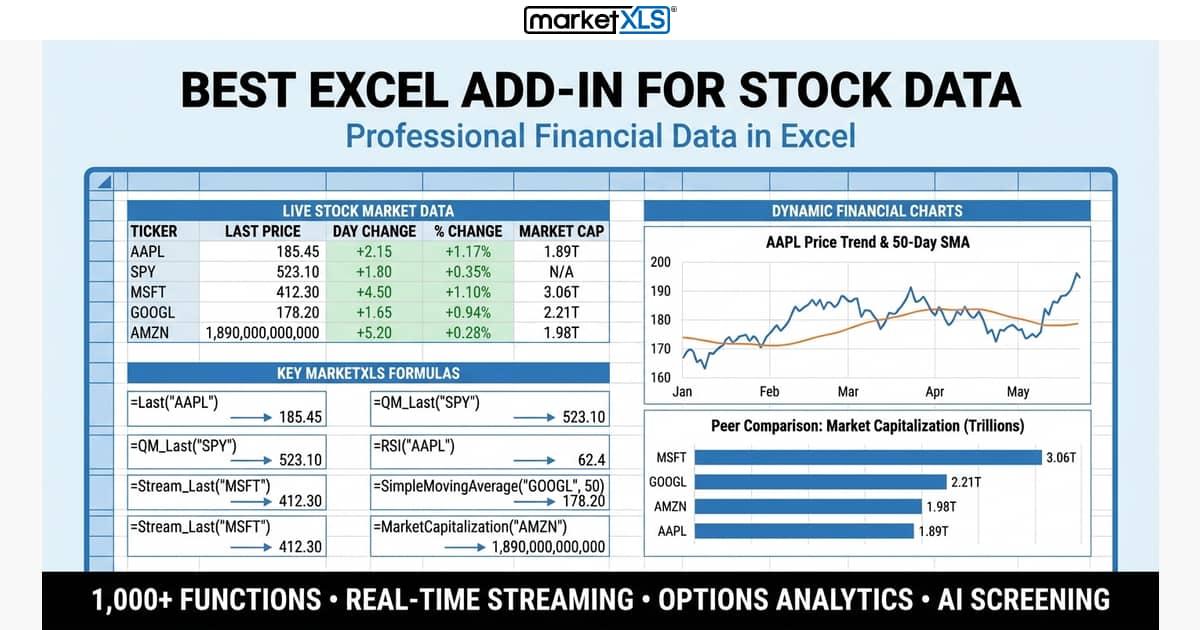
Best Excel Add-in for Stock Data — if you've ever tried to build a stock tracker, options analyzer, or financial model in Excel, you know the pain. Excel is arguably the most powerful analytical tool on the planet, but it ships with almost no market data built in. You need an add-in to bridge the gap between your spreadsheet and the financial markets.
The problem is that there are dozens of Excel add-ins and plugins claiming to deliver stock data, and they vary wildly in quality, coverage, and price. Some give you delayed quotes and little else. Others offer real-time streaming stock prices, full options chains with Greeks, decades of fundamental data, and technical indicators — all accessible through simple Excel formulas.
We spent weeks testing the most popular stock market Excel add-ins available in 2026. We evaluated each one on seven criteria: data coverage (stocks, ETFs, indices, crypto), real-time capability, options data depth, fundamental data quality, ease of use, formula library size, and price-to-value ratio. Whether you're a casual investor tracking a portfolio, a financial advisor building client reports, or an options trader who lives in spreadsheets, this guide will help you find the right Excel add-in for stock data.
Here's our honest, comprehensive ranking of the eight best options available today.
Quick Comparison: Best Excel Add-ins for Stock Data (2026)
| Add-in | Best For | Real-Time | Options Data | Price Range | Our Rating |
|---|---|---|---|---|---|
| MarketXLS | All-in-one stock & options analysis | ✅ Streaming | ✅ Full chains + Greeks | $$ | ⭐⭐⭐⭐⭐ |
| Microsoft 365 Stocks | Casual users (free) | ❌ Delayed | ❌ None | Free | ⭐⭐⭐ |
| Daloopa | Equity research analysts | ❌ No | ❌ None | $$$$ (Enterprise) | ⭐⭐⭐⭐ |
| Finsheet | Retail investors & crypto | ✅ Yes | ⚠️ Limited | $–$$ | ⭐⭐⭐½ |
| Intrinio | Developers & API users | ✅ Yes | ✅ Yes | $$–$$$ | ⭐⭐⭐½ |
| Portfolio123 | Screening & backtesting | ❌ No | ❌ None | $$–$$$ | ⭐⭐⭐ |
| Stock Connector | Basic stock prices | ✅ Near real-time | ❌ None | $ | ⭐⭐⭐ |
| Quandl / Nasdaq Data Link | Historical & alternative data | ❌ No streaming | ⚠️ Limited | $$–$$$$ | ⭐⭐⭐½ |
Now let's dig into each one.
1. MarketXLS — Best Overall Excel Add-in for Stock Data
Best for: Professional investors, financial advisors, options traders, and anyone who wants comprehensive market data directly in Excel.
If you're looking for the most complete stock data Excel add-in available today, MarketXLS is the clear frontrunner. With over 1,105 Excel functions covering real-time stock prices, streaming data, options chains, fundamental analysis, technical indicators, and historical data, it's the deepest toolkit we've tested by a significant margin.
What Sets MarketXLS Apart
The core strength of MarketXLS is that it turns Excel into a full-fledged market data terminal. Rather than switching between your broker platform, financial websites, and spreadsheets, you can pull virtually any data point directly into a cell with a simple formula.
Real-time and streaming stock prices are a standout feature. Use =Last("AAPL") to get the latest price of Apple, or =Stream_Last("AAPL") for live streaming data that updates automatically in your spreadsheet. Most competing add-ins offer delayed data at best — MarketXLS delivers actual real-time streaming, which is critical for active traders.
Options data is where MarketXLS really separates itself from the pack. The function =QM_GetOptionChain("AAPL") pulls the entire options chain for any stock, including all strikes, expirations, bid/ask spreads, open interest, volume, and the full suite of Greeks (delta, gamma, theta, vega, rho). If you're an options trader, this alone might justify the subscription. You can build complex options strategies, run P&L scenarios, and track your positions entirely within Excel. For the full workflow, see options data in Excel.
Fundamental data is equally comprehensive. Need the P/E ratio? Type =PERatio("AAPL"). Dividend yield? =DividendYield("AAPL"). Revenue for a specific fiscal period? =hf_revenue("AAPL", 2024, 2) gives you Q2 2024 revenue. MarketXLS covers income statements, balance sheets, cash flow statements, and dozens of financial ratios across thousands of stocks.
Technical analysis is built in as well. Functions like =RSI("AAPL") and =SimpleMovingAverage("AAPL", 50) let you calculate indicators without manually building formulas. Combined with historical price data, you can backtest strategies, build custom screeners, and create technical dashboards entirely in Excel.
For more examples of pulling stock quotes in Excel, check out our dedicated product guide and formula walkthrough.
Who Uses MarketXLS
MarketXLS has over 500 active subscribers, including financial advisors, portfolio managers, retail traders, and academic researchers. The user base skews toward people who take their analysis seriously and want professional-grade data without paying Bloomberg terminal prices.
Where MarketXLS Falls Short
Honesty time: MarketXLS is Windows-only. If you're on a Mac, you'll need to run it through a virtual machine or Boot Camp, which isn't ideal. The learning curve can also be steep — with 1,105 functions, it takes time to learn which formulas to use. And it's not free — this is a paid subscription product. Check the MarketXLS pricing page for current plans.
The Quote Row: Which Formulas Actually Build a Live Dashboard
If you only take one thing from this section, take the quote row. Almost every MarketXLS dashboard starts as a single row of formulas copied down a ticker list:
=QM_Last("AAPL")             Last traded price
=QM_Change("AAPL")           Day change in dollars
=QM_ChangePercent("AAPL")    Day change in percent
=QM_PreviousClose("AAPL")    Prior session close
=QM_Volume("AAPL")           Session volume
=Name("AAPL")                Company name
=Sector("AAPL")              Sector
=MarketCapitalization("AAPL") Company size
=Beta("AAPL")                Volatility vs the market
Add context columns and the row becomes a screener:
=RelativeStrengthIndex("AAPL")   RSI, 14-day
=FiftyTwoWeekHigh("AAPL")        52-week high
=FiftyTwoWeekLow("AAPL")         52-week low
=QM_GetHistory("AAPL")           Spilled OHLCV history
On-Demand vs Streaming: The Two Quote Modes
Every serious stock data add-in makes you choose between two quote modes, and MarketXLS is explicit about it.
On-demand (=QM_Last(), =Last()) fetches a value when the sheet recalculates. It is cheap, it scales to thousands of tickers, and it is the right default for analysis, reporting, and any workbook you open a few times a day.
Streaming (=Stream_Last(), =QM_Stream_Last()) holds a live subscription and updates on its own during market hours. It is the right choice for a monitor you actually watch, and the wrong choice for a 500-row screener.
The practical rule is to stream the handful of positions you are actively trading and leave everything else on-demand. This is the single biggest lever on workbook performance, and it is the mistake most new users make.
A Live Plugin Workbook to Start From
Two workbooks demonstrate the quote row, the historical layer, and the technical context columns end to end:
- - live formulas you repoint to any ticker
- - values pre-filled so you can read the layout without the add-in
Our verdict: If you need a single, comprehensive Excel add-in for stock data that covers real-time prices, options, fundamentals, and technicals, MarketXLS is the best option available in 2026. The sheer depth and breadth of its formula library is unmatched.
2. Microsoft 365 Stocks Data Type & STOCKHISTORY — Best Free Option
Best for: Casual investors who want basic stock data without paying for an add-in.
If you have a Microsoft 365 subscription, you already have basic stock data capabilities built into Excel — and most people don't even know it. The Stocks data type and the STOCKHISTORY() function were introduced by Microsoft as native features, and they're the easiest way to get started with financial data in a spreadsheet.
How It Works
The Stocks data type lets you convert a cell containing a ticker symbol (like "MSFT") into a rich data entity. Once converted, you can extract fields like price, market cap, P/E ratio, 52-week high/low, and more by referencing the cell with dot notation. The STOCKHISTORY() function pulls historical price data for a given date range and interval.
The Limitations
And here's where we have to be straightforward about the limitations — because they're significant.
No real-time data. Microsoft's stock data is delayed, typically by 15-20 minutes or more. For active trading or time-sensitive analysis, this is a non-starter.
No options data at all. There are no functions for options chains, Greeks, implied volatility, or any derivatives data. If you trade options, Microsoft's built-in tools won't help you.
No streaming. The data doesn't auto-refresh. You have to manually recalculate or close and reopen the workbook to update prices.
Limited fundamentals. You get basic metrics like market cap, P/E ratio, and beta, but you can't pull income statements, cash flow data, or detailed financial ratios the way you can with dedicated add-ins.
Limited technical indicators. There are no built-in functions for RSI, moving averages, MACD, or other technical indicators. You'd need to calculate these manually from historical price data.
Our Verdict
Microsoft 365's stock data features are a solid starting point for anyone who just wants to track a portfolio or look up basic stock information. The price is right (free with your existing Microsoft 365 subscription), and there's zero setup required. But if you need real-time data, options analysis, or deeper fundamentals, you'll quickly outgrow what Microsoft offers and need a dedicated stock market Excel add-in.
3. Daloopa — Best for Equity Research & Financial Modeling
Best for: Equity research analysts and institutional investors who build detailed financial models.
Daloopa takes a fundamentally different approach from the other add-ins on this list. Rather than giving you functions to pull individual data points, Daloopa uses AI to automatically populate entire financial models. It extracts data from SEC filings, earnings reports, and company disclosures, then maps that data into your Excel model with source citations.
What Makes Daloopa Unique
The AI-powered data extraction is genuinely impressive. Daloopa can take a company's 10-K filing and automatically fill in your revenue model, expense breakdown, balance sheet, and cash flow statement — with footnote-level sourcing so you can verify every number. For equity research analysts who spend hours manually entering data from filings, this is a massive time saver.
Daloopa also maintains historical accuracy. When a company restates financials or changes segment reporting, Daloopa updates its data accordingly, which prevents the "stale model" problem that plagues manual data entry.
The Trade-offs
Daloopa is not a general-purpose stock data add-in. It doesn't offer real-time stock prices, streaming data, options chains, or technical indicators. It's laser-focused on fundamental financial modeling.
The pricing reflects its institutional target market — Daloopa uses enterprise pricing that puts it well beyond what individual investors or retail traders would typically pay. It's designed for hedge funds, asset managers, and sell-side research teams.
If you're an equity research analyst, Daloopa is arguably the best tool for what it does. But if you're looking for a broad-purpose Excel add-in for stock data, it's too specialized.
Our verdict: Outstanding for financial modeling professionals. Not the right fit for general stock data needs.
4. Finsheet — Best for Google Sheets Users Who Also Use Excel
Best for: Retail investors, especially those who work in Google Sheets and want real-time stock and crypto data.
Finsheet started as a Google Sheets add-on and has since expanded to offer an Excel version. It provides real-time stock prices, historical data, financial statements, and — notably — cryptocurrency data for a wide range of coins and tokens.
Strengths
Finsheet's interface is clean and beginner-friendly. Functions are straightforward, and the documentation is solid. The crypto coverage is a genuine differentiator — if you're tracking both stocks and crypto in the same spreadsheet, Finsheet handles both well.
Real-time data is available, and Finsheet covers major exchanges globally, not just US markets. The pricing is affordable, making it accessible for casual and retail investors who want more than Microsoft's built-in features but don't need the depth of a professional-grade tool.
Limitations
The Excel version isn't as mature as the Google Sheets version. Some features are still catching up, and the function library is significantly smaller than what you'd get with a dedicated Excel-first add-in like MarketXLS. Options data is limited — you can get basic options quotes but not full chains with Greeks. Technical indicators are also limited; you'll need to build most of them yourself from price data.
Our verdict: A solid, affordable choice for retail investors — especially if you split time between Google Sheets and Excel. The crypto support is a real plus. But power users and options traders will find the Excel version lacking in depth.
5. Intrinio Excel Add-in — Best for Developers & API-First Users
Best for: Developers, quants, and technically sophisticated users who want flexible API access with an Excel interface.
Intrinio is a financial data provider that offers an Excel add-in as one of several ways to access its data. The underlying engine is a REST API, and the Excel add-in essentially wraps that API in a spreadsheet-friendly format. This makes Intrinio particularly appealing to users who are comfortable with APIs and might want to access the same data from Python, R, or other programming environments alongside Excel.
Strengths
Intrinio's fundamental data coverage is excellent. It pulls from SEC filings and provides standardized financial statements, ratios, and metrics for US equities. The data is clean, well-structured, and includes historical depth going back many years.
Real-time and delayed stock prices are available through the add-in. Intrinio also offers options data, including historical options prices, which is useful for backtesting options strategies.
The developer-friendly approach means you get good documentation, consistent data schemas, and the ability to build more sophisticated data pipelines if you outgrow pure spreadsheet analysis.
Limitations
The setup is more technical than most Excel add-ins. You need to configure API keys, understand authentication, and sometimes troubleshoot connection issues. This isn't a "install and start typing formulas" experience — there's a meaningful learning curve.
Pricing is tiered based on data feeds and usage, which can get complex. Casual users might find it over-engineered for simple stock tracking.
Our verdict: Excellent for technically skilled users who want a flexible, API-based data provider that also works in Excel. Not ideal for non-technical users who just want simple stock formulas.
6. Portfolio123 — Best for Stock Screening & Backtesting
Best for: Quantitative investors who want to screen, rank, and backtest stock strategies in Excel.
Portfolio123 is less of a traditional stock data add-in and more of a quantitative investing platform that happens to integrate with Excel. Its core strengths are stock screening, factor-based ranking, and backtesting — not raw data delivery.
Strengths
The screening engine is powerful. You can define custom ranking systems based on hundreds of fundamental, technical, and sentiment factors, then backtest those systems against historical data. The Excel integration lets you export screener results, portfolio holdings, and performance data into your spreadsheets for further analysis.
If your primary goal is to systematically evaluate stocks based on quantitative criteria, Portfolio123 is purpose-built for that workflow.
Limitations
Portfolio123 doesn't provide real-time stock prices or streaming data. It's not designed for options analysis or intraday trading. The Excel integration is more of a data export tool than a live data feed — you're pulling pre-processed results rather than raw market data.
Pricing sits in the mid-to-high range, reflecting its focus on professional quant workflows rather than basic data access.
Our verdict: A strong tool for systematic, rules-based investing. But if you need a general-purpose Excel plugin for stock data, live prices, or options chains, look elsewhere.
7. Stock Connector — Best for Simple, Lightweight Stock Tracking
Best for: Users who want basic, no-frills stock prices in Excel without complexity.
Stock Connector is one of the simplest stock data add-ins available for Excel. It does one thing — pulls stock prices and basic quote data into your spreadsheet — and it does it with minimal setup.
Strengths
Installation is quick, and the learning curve is almost flat. You can start pulling stock prices within minutes of installing. It covers major global exchanges and provides near real-time quotes for stocks, ETFs, and indices. For users who just want a lightweight price tracker in Excel, Stock Connector delivers without the complexity of more full-featured tools.
Pricing is among the lowest on this list, making it an easy entry point.
Limitations
The "simple" trade-off means no options data, no streaming, limited fundamentals (basic quote data only), and no technical indicators. If your needs grow beyond basic price tracking, you'll hit the ceiling quickly.
Our verdict: Good for what it is — a clean, cheap, simple stock price tool. But it's a starting point, not a destination for serious analysis.
8. Quandl / Nasdaq Data Link — Best for Historical & Alternative Data
Best for: Quantitative analysts and researchers who need deep historical data and alternative datasets.
Quandl (now rebranded as Nasdaq Data Link after being acquired by Nasdaq) offers an Excel add-in that accesses its extensive library of financial and alternative datasets. This includes historical stock prices, economic indicators, futures data, and a growing catalog of alternative data sources (sentiment, satellite imagery, supply chain data, etc.).
Strengths
The depth of historical data is exceptional. If you need 30 years of daily price data, or economic time series going back to the 1950s, Quandl has it. The alternative data catalog is unique among the tools on this list — no other Excel add-in gives you access to things like shipping container volumes or credit card spending trends.
For academic research and quantitative modeling, Quandl's data library is hard to beat.
Limitations
Quandl's Excel add-in doesn't offer real-time streaming stock prices. The data is delivered in batch — you request a dataset, and it loads into your spreadsheet. This makes it poorly suited for active trading or live market monitoring.
Options data is available in some premium datasets, but it's not as accessible or user-friendly as what you'd get from a dedicated options-focused add-in. Pricing varies enormously depending on which datasets you need — some are free, while premium alternative data feeds can cost thousands per month.
Our verdict: Unbeatable for historical depth and alternative data. But if you need real-time stock data in Excel for daily use, Quandl is a complement to your main add-in, not a replacement for it.
How We Evaluated These Excel Add-ins for Stock Data
To keep our comparison fair and consistent, we evaluated each stock market Excel add-in against seven criteria:
1. Data Coverage
How many asset classes does the add-in support? We looked for coverage of US stocks, international equities, ETFs, indices, mutual funds, options, futures, and cryptocurrencies. The more comprehensive the coverage, the higher the score.
2. Real-Time Capability
Does the add-in offer real-time stock prices? Is the data actually streaming (auto-updating), or do you need to manually refresh? For active traders and professionals, real-time streaming data is non-negotiable.
3. Options Data Depth
Can you pull full options chains? Are Greeks included? Can you access historical options data for backtesting? Options data is a major differentiator — many add-ins skip it entirely.
4. Fundamental Data Quality
Does the add-in provide income statements, balance sheets, cash flow statements, and financial ratios? How far back does the historical data go? Is the data sourced from SEC filings or less reliable aggregators?
5. Ease of Use
How quickly can a new user install the add-in and start pulling data? Is the formula syntax intuitive? Is the documentation helpful? We gave higher marks to add-ins that minimize the learning curve.
6. Formula Library Size
How many unique functions or data points can you access? A larger formula library generally means more flexibility for different analysis workflows. MarketXLS's 1,105 functions set the high-water mark here.
7. Price-to-Value Ratio
Is the subscription cost justified by the features you get? We considered both absolute price and value relative to what you'd pay for alternative data sources (Bloomberg, Reuters, etc.).
What to Look For When Choosing a Stock Data Excel Add-in
Not every investor needs the same tool. Here's how to match an Excel plugin for stock data to your specific situation:
Casual Investors & Portfolio Trackers
If you just want to monitor a portfolio of 20-50 stocks with basic price data and maybe some fundamental metrics, start with Microsoft 365's built-in Stocks data type. It's free, requires no installation, and covers the basics. If you find it too limited (which most people eventually do), upgrade to Stock Connector or Finsheet for an affordable step up.
Options Traders
If you trade options, your choice is more constrained. You need full options chains, Greeks, and ideally the ability to model multi-leg strategies. MarketXLS is the standout here — its options data depth (full chains with all Greeks via =QM_GetOptionChain("AAPL")) is unmatched among Excel add-ins. Intrinio also offers options data but requires more technical setup.
Financial Advisors & Portfolio Managers
You need reliable data for client reporting, portfolio analysis, and investment research. Accuracy, breadth, and the ability to automate reports are key. MarketXLS serves this use case well with its comprehensive formula library covering prices, fundamentals, dividends, and technicals. Daloopa is worth considering if detailed financial modeling is a core part of your workflow.
Quantitative Analysts & Researchers
If you're building quantitative models, backtesting strategies, or doing academic research, you need deep historical data and possibly alternative datasets. Quandl / Nasdaq Data Link excels here. Portfolio123 is strong for screening and backtesting specifically. Intrinio offers a good balance of data quality and developer-friendly access.
Active Day Traders
Real-time streaming is your top priority. MarketXLS is the best option for live streaming stock data directly in Excel via =Stream_Last("AAPL"). Most other add-ins offer either delayed data or manual-refresh real-time data, which isn't sufficient for intraday trading decisions.
Budget-Conscious Users
If cost is your primary constraint, start with Microsoft 365's free features, then consider Stock Connector or Finsheet as affordable paid options. Keep in mind that "free" often means delayed data and limited coverage — there's usually a reason professional data costs money.
Frequently Asked Questions
Does Excel have built-in stock data?
Yes — if you have Microsoft 365 (formerly Office 365), Excel includes a Stocks data type and a STOCKHISTORY() function. You can convert ticker symbols into rich data entities that include price, market cap, P/E ratio, and other basic metrics. However, the built-in stock data is delayed (not real-time), doesn't include options data, and has limited fundamental coverage compared to dedicated add-ins. It's a good starting point for casual use, but most serious investors find they need more.
Can I get real-time streaming stock prices in Excel?
Yes, but only with certain add-ins. MarketXLS offers true streaming real-time stock prices through its =Stream_Last() function, which auto-updates prices in your spreadsheet without manual refreshing. Some other add-ins offer "real-time" data that requires manual recalculation to update. Microsoft 365's built-in stock data is delayed, not real-time. If live streaming prices are important to your workflow, make sure the add-in you choose explicitly supports streaming — not just "real-time" data that's actually snapshotted at the time of your request.
Which Excel add-in has the best options data?
MarketXLS has the most comprehensive options data of any Excel add-in we tested. Its =QM_GetOptionChain() function pulls complete options chains with all strikes, expirations, bid/ask prices, volume, open interest, and full Greeks (delta, gamma, theta, vega, rho). You can also price individual options, build multi-leg strategies, and analyze implied volatility. Intrinio also offers options data through its API-based add-in, but the access is less streamlined for spreadsheet-first users. Most other add-ins on this list don't offer options data at all.
Are these Excel add-ins compatible with Mac?
Compatibility varies. Microsoft 365's built-in stock features work on both Windows and Mac versions of Excel. However, most third-party Excel add-ins — including MarketXLS — are currently Windows-only because they rely on Windows-specific Excel integration features (COM add-in architecture). If you're on a Mac, your best options are: (1) use Microsoft 365's built-in features, (2) try a Google Sheets-based alternative like Finsheet, or (3) run Windows through a virtual machine (Parallels, VMware) or Boot Camp. This is an industry-wide limitation, not specific to any one add-in.
Can I use these Excel add-ins for automated trading?
These add-ins are designed for data analysis, not trade execution. None of them will place orders for you directly. However, you can use the data they provide to build trading signals and decision frameworks in Excel, then manually execute trades or connect to a broker's API separately. Some advanced users combine MarketXLS's real-time data with Excel VBA macros or Python scripts to create semi-automated workflows, but the add-ins themselves are analysis tools, not trading platforms.
What's the difference between an Excel add-in and an API?
An Excel add-in installs directly into Excel and lets you access data through spreadsheet formulas — you type something like =Last("AAPL") and get a result in a cell. An API (Application Programming Interface) is a more technical interface that lets you request data programmatically, typically through code in Python, R, JavaScript, or other languages. Some products (like Intrinio) offer both: an API for developers and an Excel add-in for spreadsheet users. The add-in approach is easier for non-programmers, while the API approach offers more flexibility and is better suited for large-scale data processing or integration with other software systems.
The Bottom Line
The best Excel add-in for stock data depends on what you need — but for most investors and analysts, the decision comes down to how much depth you require.
For casual use, Microsoft 365's built-in stock features are free and sufficient. For serious analysis — real-time streaming prices, full options chains with Greeks, comprehensive fundamentals, and technical indicators all in one place — MarketXLS is the most complete solution available in 2026, with 1,105 functions covering virtually every data point an investor might need.
The other add-ins on this list each have genuine strengths in specific niches: Daloopa for AI-powered financial modeling, Finsheet for crypto and Google Sheets, Intrinio for developers, Portfolio123 for quantitative screening, Stock Connector for simplicity, and Quandl for historical depth.
Our recommendation: Start by defining your actual needs (real-time? options? fundamentals? budget?), then match those needs against the comparison table above. If you find yourself needing a comprehensive, all-in-one stock data Excel add-in, explore the MarketXLS stock data Excel add-in and its pricing plans to see if it fits your workflow.
Whatever you choose, adding a stock data add-in to Excel transforms it from a static spreadsheet tool into a dynamic market analysis platform — and that's a worthwhile upgrade for any investor.